
07 · Passes
Print single pass One pass, at once.
In ERAPasses › Print single pass
Who uses itOrganizer · Track staff
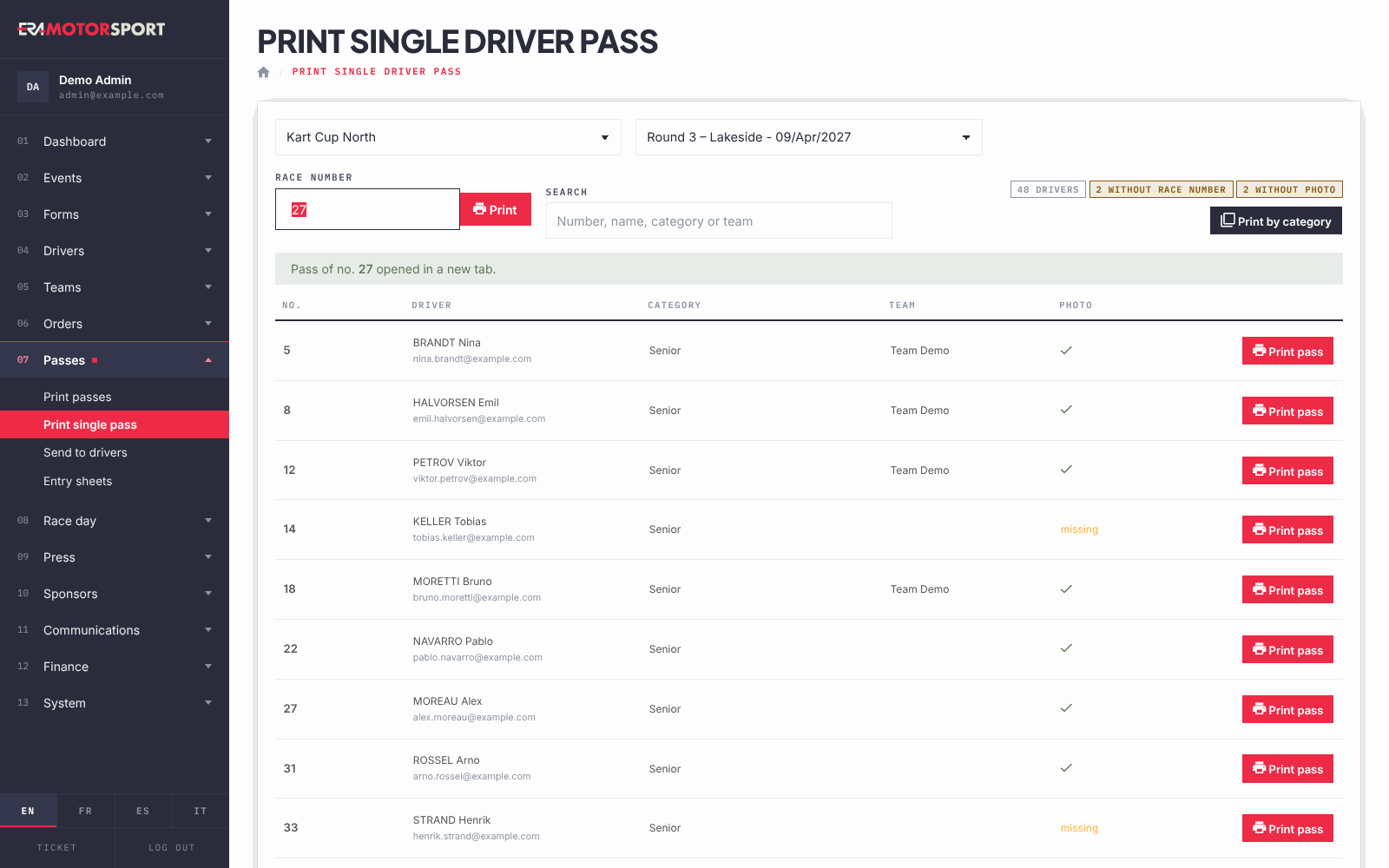
The page prints the pass of a single driver: type the race number and press Enter, or find the driver in the list.
What it is for
Use it at the desk when a driver lost his pass, registered late, or changed number, photo or category. It is also the quickest way to see which drivers of the event have no race number or no photo before you print all the passes.
Before you start
The pass background of the championship must be uploaded in System › Pass templates. Without it the pass is printed with no background, and the page shows a yellow warning.
Step by step
- Open the page. Go to Passes › Print single pass and choose the championship and the event.
- Type the race number. Write it in Race number and press Enter or Print. The pass opens as a PDF in a new tab.
- Or search the driver. Write a number, a name, a category or a team in Search: the list shows only the drivers that match. Press Print pass on the row.
- Give a number first, if needed. A driver without number shows "none" and the button Set race number, which opens his entry. Save the number there, then come back and print.
- Print on the card printer. The PDF has two pages: front and back.
What ERA checks
- The list shows the drivers with a valid entry for the event, including season passes that cover it. Cancelled registrations and card orders not paid are not in the list.
- If the same number is used in two classes, the quick print does not choose: it filters the list so you print the right driver. The row shows "same no. in another class".
- The Photo column shows whether the driver profile has a photo. A driver marked missing may still get a photo on the pass from one of his registrations: check the printed pass.
Common problems
| What happens | What to do |
|---|---|
| "No driver with race number … at this event." | Check the number, or search the driver by name: he may have no number yet. |
| "Number … is used in more than one class" | Print the right driver from the filtered list. |
| The driver is not in the list | His entry is cancelled, or he paid by card and the payment did not go through. Check it in Drivers › Entries. |
| The pass has no photo | Add the photo to the driver, then print again. |
See also
Something does not match what you see in ERA? Write to us from the contact page.