
The entry card One entry, all its data.
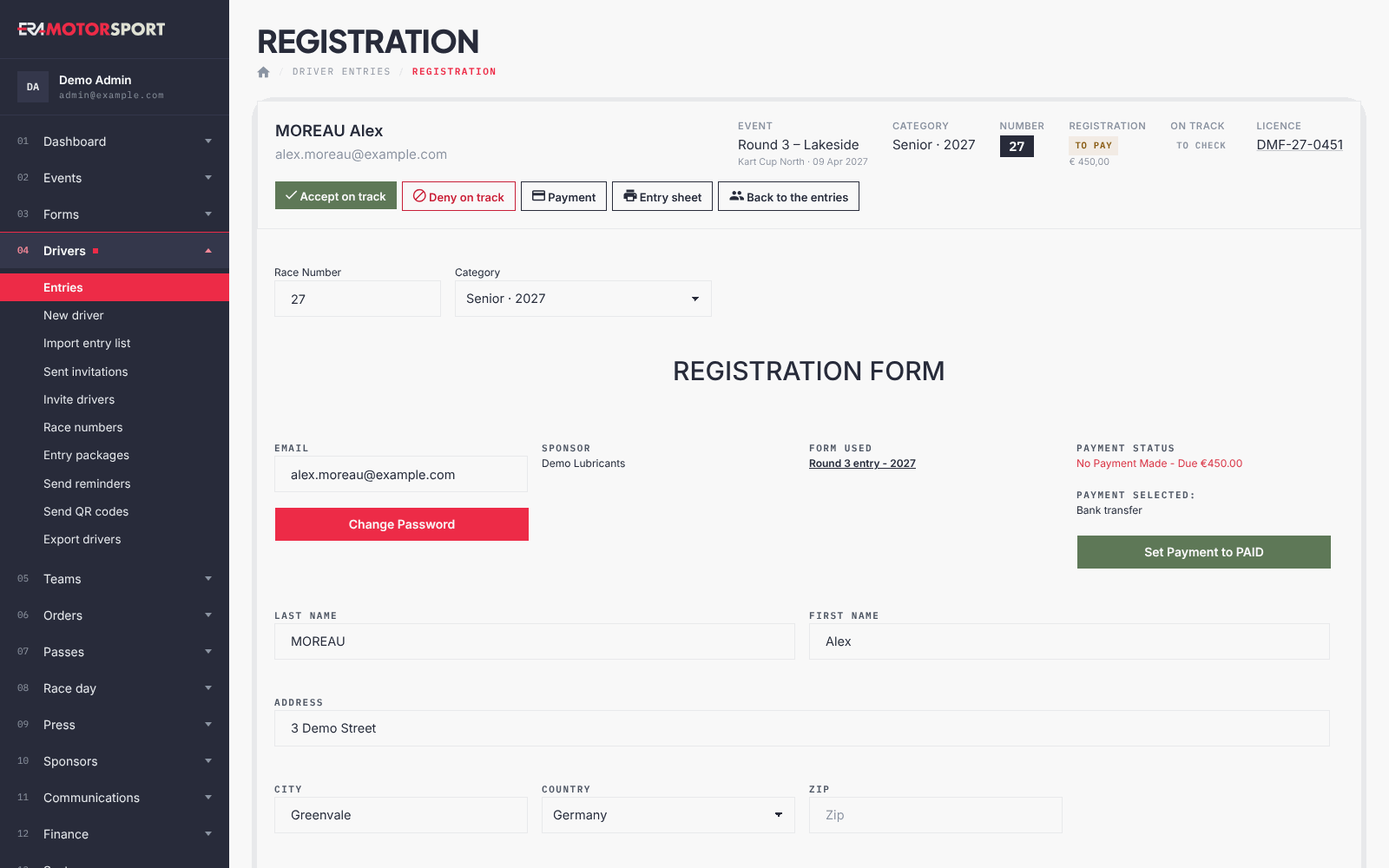
The entry card shows one entry of one driver: race or season pass, category, race number, payment, on-track check, and every field of the form the driver filled in.
What it is for
You open it to answer a driver at the desk ("did my transfer arrive?", "I changed category"), to look at a licence or a medical certificate, to confirm a payment received by bank transfer or cash, and to print the entry sheet with the signatures for the scrutineering folder.
Open it by clicking the driver name in Entries or Race numbers. ERA also opens it right after you add a driver from New driver.
The box at the top sums up the entry: driver, email and team; Event or Season pass with the championship and the date; Category, Number; Registration ("paid", "to pay" or "cancelled", with amount, method and payment date); On track ("accepted", "denied" or "to check"; for a season pass the card shows the last check, at any race: the check for each race is in Entries with the race selected); Licence (click the number to open the scan). Under it are Accept on track, Deny on track, Reset on-track check, Payment, Entry sheet and Back to the entries. The on-track buttons do not appear on a cancelled entry.
Step by step
- Check the summary. Status, payment and on-track check are all in the top box.
- Look at the documents. Licence, entrant licence, medical certificate, start permission, ID or passport and photo open in the FILE VIEWER window (View License, View Medical Certificate, View Start Permission, View Photo). If this entry has no file but another entry of the same driver in the championship has one, ERA shows that one.
- Look at the signatures. Driver, entrant and parent signatures made on the website or on the tablet at the counter are shown as images. They are read only, like every field marked (from the website, read only).
- Correct the data. Change Race Number, Category or any field of the form, upload a new document in its file field, then press UPDATE REGISTRATION. The Category list has the categories of the form; the current one stays in the list even if it has been switched off, marked "(off)".
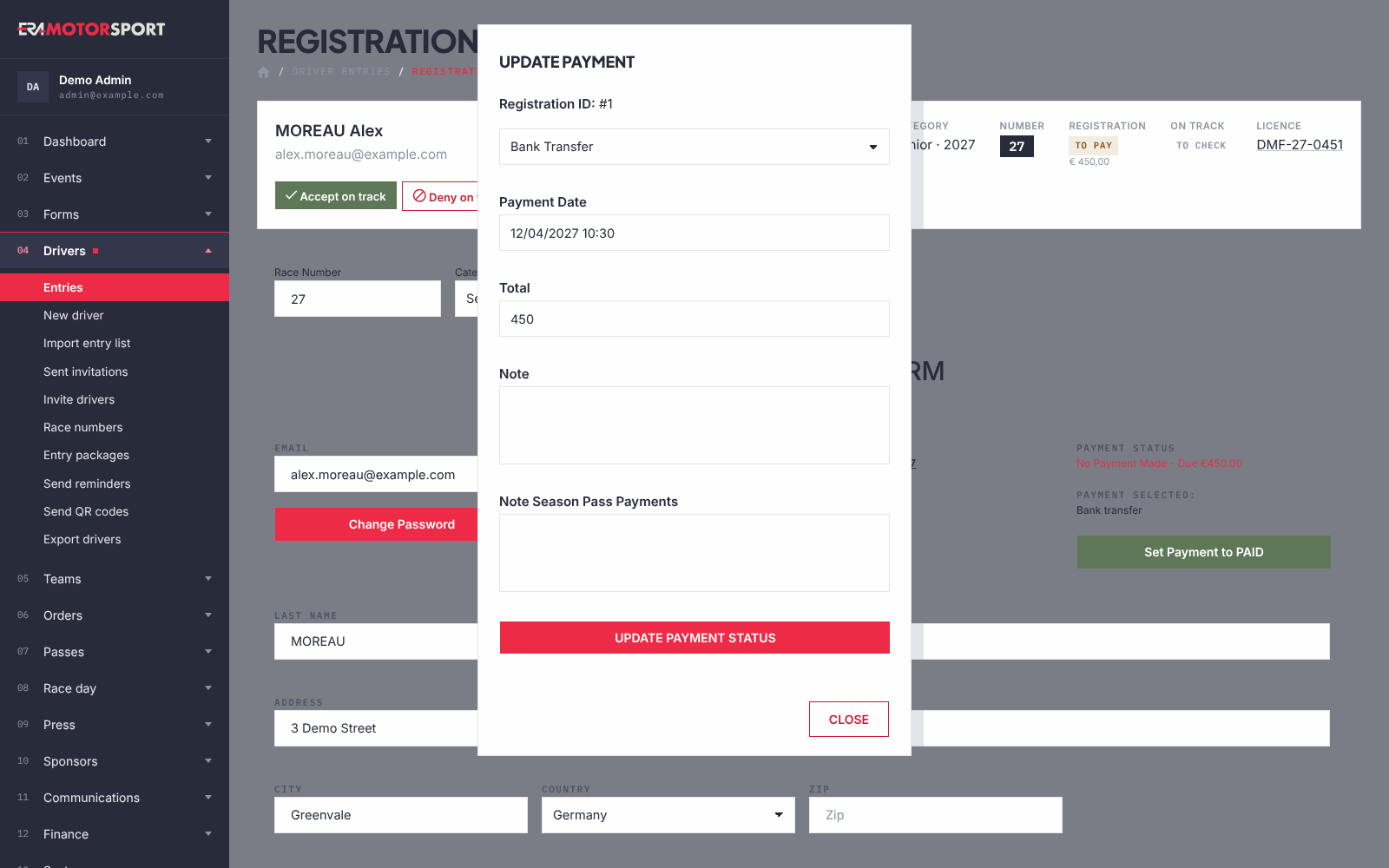
- Confirm a payment. Press Payment (or Set Payment to PAID in the form). In the UPDATE PAYMENT window choose the Payment Method, write the Payment Date (dd/mm/yyyy) and the Total, add a Note and, for a season pass paid in instalments, a Note Season Pass Payments. Press UPDATE PAYMENT STATUS: the payment becomes PAID and the entry Confirmed. Use the same window to correct a payment already made (Change Payment Info).
- Accept on track. Press Accept on track when the driver has passed the checks, or Deny on track (ERA asks for a confirmation). Reset on-track check puts the entry back to "to check". For a season pass, accept from Entries with the race selected: there ERA records the race, and the card lists it under Season Pass - How many races has done?. For a season pass driver, Deny on track blocks the driver at every race of the pass, and Reset on-track check also clears the acceptance shown at the earlier races. Accept the driver again where needed.
- Print the entry sheet. Entry sheet opens an A4 page with the data and the signatures, for the folder kept for the checks. See Entry sheets.
What ERA checks
- You open only entries of championships you have access to; otherwise ERA shows No access! You don't have access..
- The race number is unique in the category of the race, season passes that cover the race included. If the number is already used by another driver, ERA keeps the old one and shows Race number not changed. with the nearest free number of the category range.
- If you change the category, or empty the race number, ERA gives the number after the highest one already used in that category, counting the entries of every race and form that are not cancelled. If the category is switched off, has no range or its range is full, the entry stays without a number.
- Fields required by the form must be filled before saving. Choose a JPG or PDF file (PNG also for the photo), at most 5 MB.
- Changes to name, address, birth date, telephone, licence, transponder, chassis and team also update the driver profile, so the next entries start from the new data.
- If the entry belongs to a website order with more entries, confirming its payment confirms all the entries of that order, also the ones that had been cancelled.
- If the entry is part of a team order, the payment window does not open the form: one payment covers all the drivers, and ERA offers Confirm the payment in the team card.
- Depending on your admin level, the form also shows a Payment Status box with the amount due or the payment made.
- Every change is written in the Action log.
Common problems
| What happens | What to do |
|---|---|
| Race number not changed. | Use the free number ERA suggests, or free the number in Race numbers. |
| The race number changed by itself after saving. | You changed the category or emptied the number: ERA gave the number after the highest one used in that category. Write the number you want and save again. |
| The payment window only talks about a team order. | Confirm the payment in the team card. |
| A season pass driver is still "to check" at this race. | Accept the driver from Entries with the race selected. |
| You need to remove the entry. | The card has no cancel button: delete the entry from Entries. |