
12 · Finance
Driver invoices Invoices for each driver.
In ERAFinance › Driver invoices
Who uses itOrganizer
The drivers entered in one event, with their payment and their invoices. You upload the invoices here, and the drivers download them from their area of the website.
What it is for
Use it after the event, when you have issued the invoices for the entries: one or more PDF files per driver, without sending emails one by one.
Step by step
- Open the page. Go to Finance › Driver invoices and choose the championship and the event. You see the drivers entered, season pass holders who cover the race included, in alphabetical order.
- Find the driver. Search by name, email or race number. Tick only without invoice to see only the drivers still waiting.
- Check the payment. The Paid column shows the amount paid, or to pay.
- Upload the invoice. On the driver's line choose one or more PDF files and click Upload. The files appear in the Invoices column.
- Open or remove. Click a file to open it. The small cross removes it after a confirmation: the driver does not see it any more.
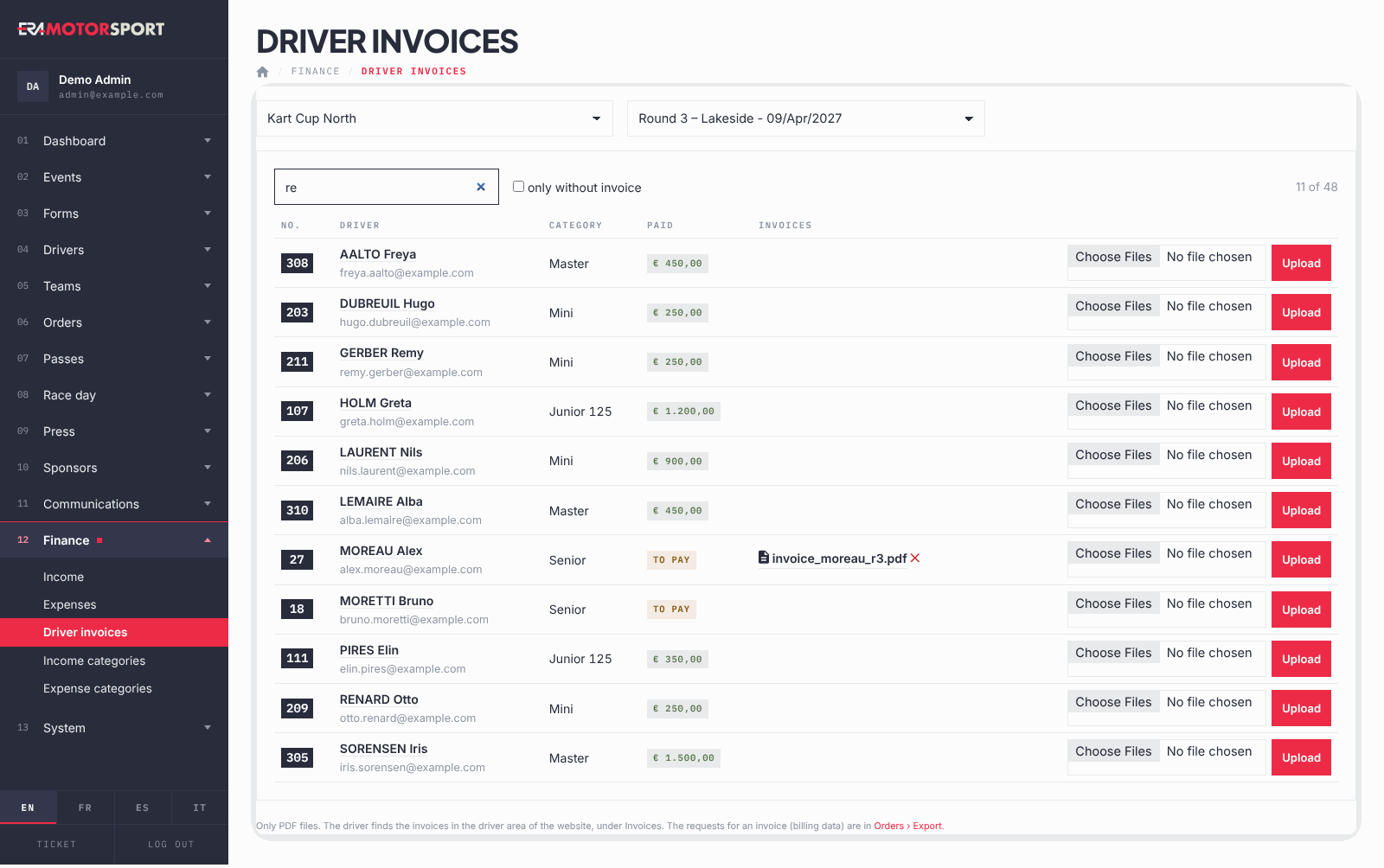
The driver finds the invoices in the driver area of the website, under Invoices. The billing data the drivers asked for are in Export orders.
What ERA checks
- Only real PDF files are accepted.
- The driver must be entered in the event; cancelled entries are not listed.
- Removing an invoice asks for a confirmation and deletes the file.
Common problems
| What happens | What to do |
|---|---|
| "Only PDF files" with the name of the file. | Export the invoice as PDF from your invoicing program and upload it again. |
| "Choose the PDF files." | Choose at least one file before clicking Upload. |
| "This driver is not registered to the event." | The entry was cancelled or belongs to another event. Check the entry card. |
| "No driver registered to this event." | Check that you chose the right event. |
See also
Something does not match what you see in ERA? Write to us from the contact page.