
News The championship news.
The news of a championship as they appear on the website: the most recent at the top, each with its date, its event and whether the public can see it.
What it is for
Use this page to publish the announcement of an event, a report from the track or the result of a round. You can write the news yourself, or let ERA's AI write a first draft with the data of the event, which you then read, correct and publish.
Step by step
- Open the page. Go to Communications › News and choose the championship at the top. You see its news, the most recent first. Use the search box to find a news by its title.
- Check the list. Each line shows the main image, the Title, the Date, the Event and the Website column: visible (click it to open the news on the website) or hidden.
- Show, hide or delete. Hide takes a news off the website without deleting it; Show puts it back. The bin button deletes the news after a confirmation: it cannot be undone.
- Write a news. Click New news, or Edit on a line. Fill in Title, Summary (the short text on the news cards and in the previews when the link is shared, up to 300 characters) and Text. In the text editor you can format the text, add tables, links, videos and images.
- Set the details on the right. Choose Status (Visible on the website or Hidden), the Championship and, if the news is about a round, the Event. The list of events shows only the events of the chosen championship; leave No event for a general news. A new news is set to Visible on the website: choose Hidden if it is not ready to publish.
- Date, image, tags. Date is the date shown on the news and the one that orders the list: leave it empty on a new news and ERA uses the moment you save. Main image is the picture on the cards. In Tags write the tags separated by commas, for example "Senior, Lakeside".
- Save. Click Create the news (or Save). If the news is visible, the green message has a link to see it on the website.
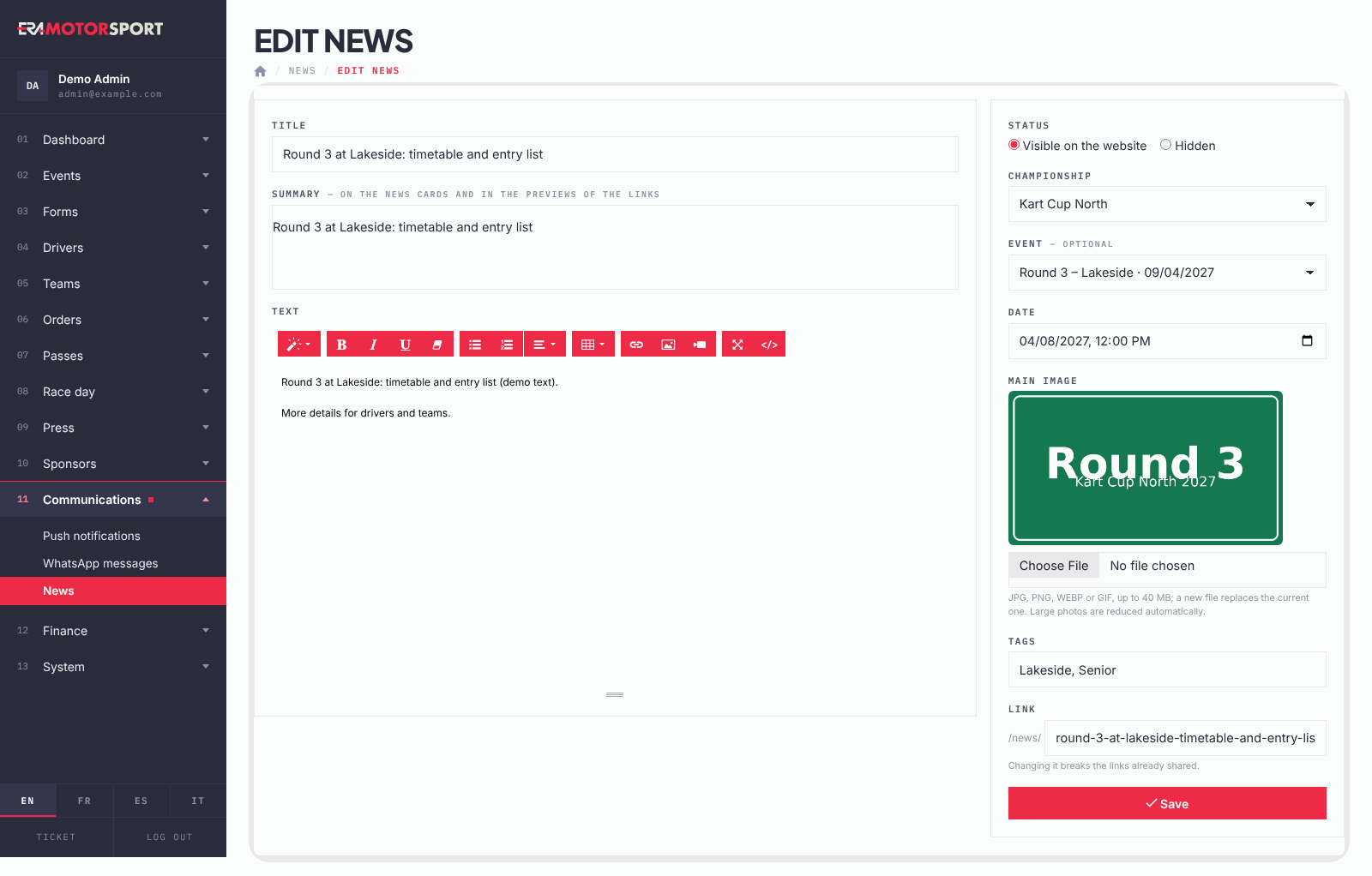
The link of the news
The field Link is the address of the news on the website, after /news/. Leave it empty on a new news: ERA makes it from the title (for example /news/round-3-lakeside-preview). From then on the link stays the same, even if you change the title.
Do not change it after publishing. Drivers, teams and the press may have shared it already, and the old address stops working. Change it only to correct a mistake on a news nobody has seen yet.
Write news with AI
- Choose the event. On Communications › News click Write with AI and choose the championship and the event at the top. The page Write news with AI opens.
- Choose the article. Under Article choose Event presentation (before the race), Event in progress or Event finished.
- Write the notes. In Notes for the AI write what the article must say: winners, highlights, news of the event. The field is optional, up to 3,000 characters.
- Add an image, if you have it. Main image is optional here: you can add it later in the editor.
- Write the article. Click Write the article and wait: it can take up to a minute. Do not click again.
- Read and publish. The news is saved as Hidden and opens in the editor, with the title, summary and text written by the AI and the event already chosen. Read it, correct it, add tags if you want, choose Visible on the website and click Save.
ERA's AI uses only your notes and what is saved in ERA about the event, the track and the categories. It does not invent results, drivers or quotes: for a finished event, write the winners in the notes, otherwise the article says that the results are on the event page. The article is written in English.
What ERA checks
- The title and the championship are required; the event must belong to the chosen championship.
- You see and edit only the news of your championships.
- Images (main image and images in the text) must be real JPG, PNG, WEBP or GIF files. A new main image replaces the current one.
- The main image can weigh up to 40 MB. A large photo is reduced by ERA when you save (long side 2400 px), so a photo straight from the camera is fine. GIFs are left as they are.
- Two news cannot have the same link: if the link is already used, ERA adds -2, -3 and so on.
- On an existing news, an empty Date keeps the date it already has.
- A news written with the AI is never published by itself: it is always saved hidden.
Common problems
| What happens | What to do |
|---|---|
| "Choose the championship to see its news." | Choose the championship at the top of the page. |
| "The event is not of this championship." | Choose an event of the championship you chose, or No event. |
| An image is refused: "is not an image" or "only JPG, PNG, WEBP, GIF files". | Save the picture again as JPG or PNG and upload it again. |
| The image is too big: the maximum is 40 MB. Reduce it (a photo of 2-5 MB is enough) and try again. | The file is over 40 MB. Export the photo smaller, a few MB are enough, and choose it again. |
| An image in the text does not appear and a red message says Image not uploaded. | Try again; if it keeps failing, save the picture as JPG and use a smaller file. |
| The old address of a news does not open any more. | The Link was changed. Put the old link back in the field, or share the new one. |
| "The AI did not write the article (…): try again later." | Wait a few minutes and click Write the article again. Your notes are still in the field. |
| "The AI is not configured" | ERA's AI is not active on your ERA. Write the news by hand and tell your ERA contact. |
| The AI article has no winners. | Write them in Notes for the AI and write the article again, or add them in the editor. |