
Push notifications Messages to the drivers' phones.
The app notifications of a championship: who received them, when, and whether they went out. From here you write a new one.
What it is for
Use a notification for what drivers must know at once: a change in the timetable, the briefing moved, the entries closing tonight. It reaches the phones of drivers who have the app with notifications on, and it also stays on the Notifications page of the app and of the website.
Step by step
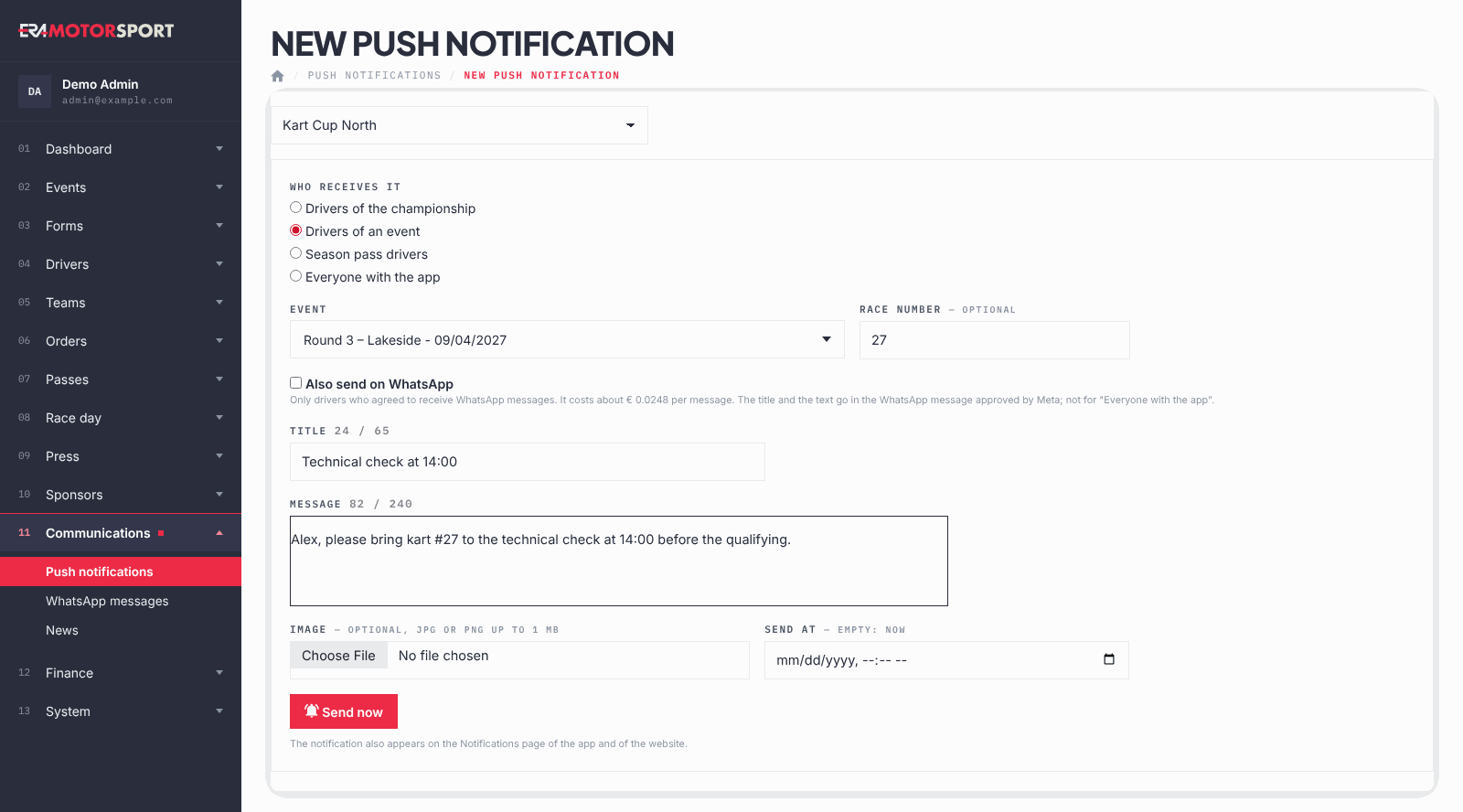
- Open the page. Go to Communications › Push notifications and choose the championship at the top. Click New notification.
- Choose who receives it. Under Who receives it choose Drivers of the championship (drivers entered in the open forms of the championship), Drivers of an event (drivers entered in one race, season pass holders who cover it included) or Season pass drivers. Only a superadmin also sees Everyone with the app.
- For one race, choose the event. With Drivers of an event choose the Event. To write to one driver only, put the Race number, for example 27; leave it empty for all the drivers of the race.
- Also on WhatsApp, if offered. When the platform allows it, below the event there is Also send on WhatsApp, already ticked if the championship uses it: the title and the message also go as a WhatsApp message to the drivers who gave consent, at the same time as the notification. Each WhatsApp message costs money: untick it if it is not worth it. Without the box, write on WhatsApp from WhatsApp messages.
- Write the text. Title up to 65 characters, Message up to 240. The counter next to each field shows how many you have used. Emoji are kept.
- Add an image, if useful. Image is optional: JPG or PNG up to 1 MB.
- Choose when. Leave Send at empty to send now, or choose a date and time to schedule it. The button changes from Send now to Schedule.
- Confirm. ERA asks you to confirm, repeating who receives it. The green message says how many phones were reached, or when the notification is scheduled.
What the driver sees when tapping
For drivers of a championship, of an event or with a season pass, the app opens the page of the event if it is online on the website, otherwise the page of the championship, otherwise the Notifications page.
For Everyone with the app the championship at the top is not used and is hidden. In its place the superadmin can choose Link on tap: a championship page or an event online on the website (events from a week ago on). With No link: the Notifications page the tap opens the Notifications page.
The list
Each line shows Title and the start of the message, To, When, Status and By (who wrote it). Click the title to see the whole notification with its image.
- scheduled: it goes out at the time shown. Click Cancel to delete it before it goes out.
- sent: it went out at the time shown.
- error: it was not sent. Click Send again to send it now. A notification sent again goes to all the recipients chosen originally, without the race number: if it was for one race number, write a new notification instead.
A superadmin also sees the notifications sent to everyone with the app.
What ERA checks
- You must choose who receives the notification, and the event when you write to the drivers of an event.
- Title and message are required.
- A scheduled time must be at least one minute in the future.
- A notification to one race number is sent only now: it cannot be scheduled.
- The image must be a real JPG or PNG, up to 1 MB: phones do not show larger images.
- Entries that were cancelled are not counted. Phones that no longer have the app are removed from the list after a sending.
- You see and send only the notifications of your championships. Only a superadmin can write to everyone with the app.
- Also send on WhatsApp is not offered for everyone with the app. If its template is not approved, the notification leaves and ERA says that the WhatsApp message was not sent.
Common problems
| What happens | What to do |
|---|---|
| "Saved, but no phone to reach: none of these drivers has the app with notifications on." | The drivers you chose have not installed the app or have turned notifications off. Use email for this message. |
| "The scheduled time must be in the future." | Choose a later time, or empty Send at to send now. |
| "A notification to one race number is sent now: leave the time empty." | Empty Send at, or remove the race number to schedule it for all the drivers of the race. |
| "The image is larger than 1 MB: phones would not show it." | Make the image smaller and upload it again. |
| The status is error. | Click Send again. If it fails again, tell your ERA contact. If the notification was for one race number, do not send it again: write a new one. |
| A scheduled notification has the wrong text. | It cannot be edited: Cancel it and write a new one. |