
02 · Events
Categories Classes, numbers and prices.
In ERAEvents › Categories
Who uses itOrganizer · Superadmin
A category is a class the drivers race in, for example "Junior 125". It gives the race number range, the technical data shown on the website and, for registrations inside ERA, the prices and the mandatory tyres.
What it is for
You prepare the categories before opening the forms: every form lists the categories it accepts, and every entry belongs to one. Past entries stay linked to their category, so the archive of the website shows its data as they are now. For a new season you copy the categories instead of changing the old ones.
Step by step
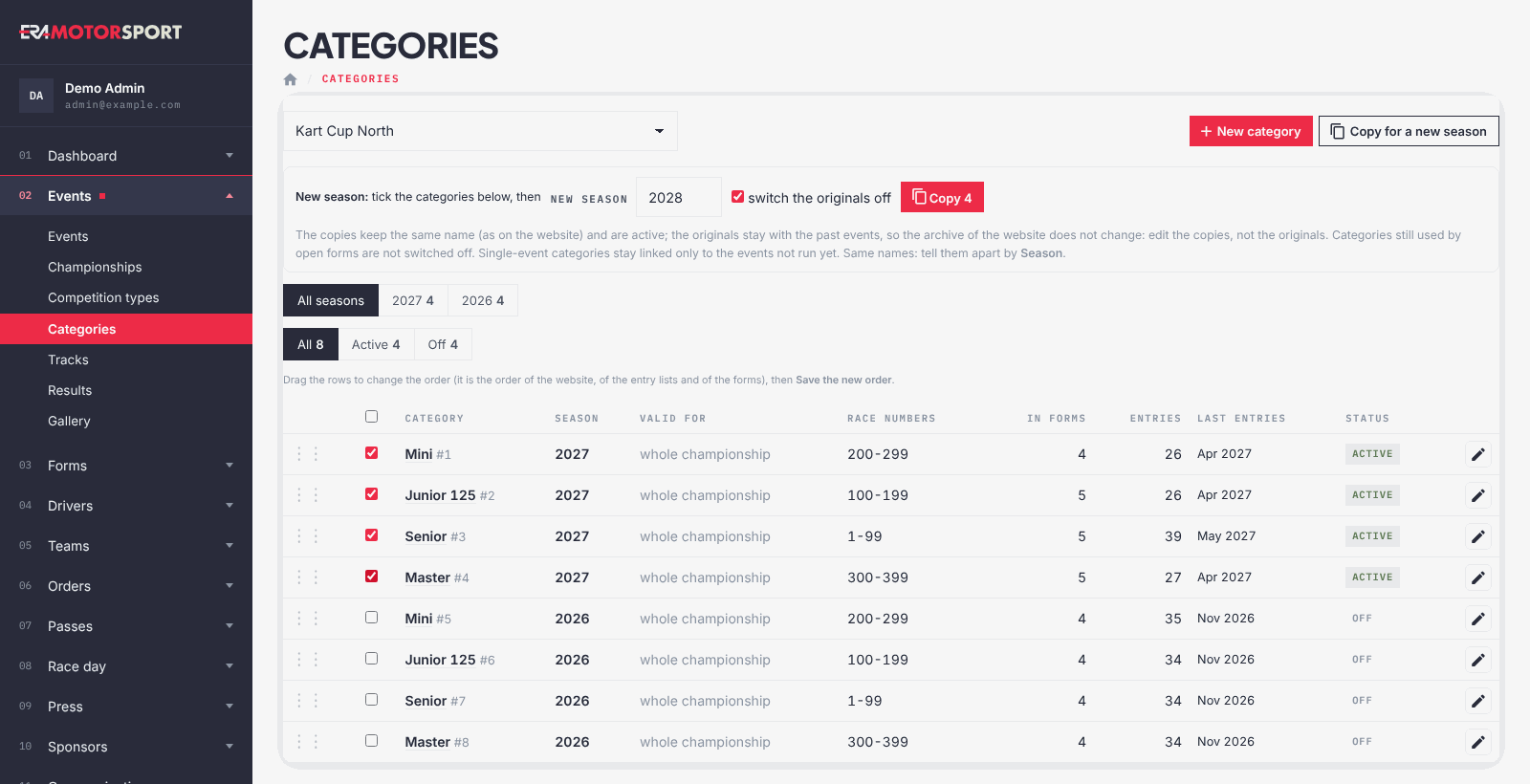
- Open the page. Go to Events › Categories and choose the championship. Each row shows Season, Valid for (the whole championship or some events), Race numbers, In forms, Entries, Last entries and the status. Filter with the season chips and with All, Active, Off.
- Create a category. Press New category. Write the Name as on the website, the Season, the Subtitle (for example 12–14 years), the Race numbers (for example 100-199) and the Licence. Set Status to Active.
- Say where it is valid. Choose the Championship. Tick events only for a category of single races: no event ticked means the whole championship.
- Fill the technical data. Age, Weight, Engine, Slick tyres and Wet tyres show on the website in the classes of the event and of the championship.
- Set prices and tyres. For registrations inside ERA write the Price · whole season / season pass (€) and the Price · single event (€) in whole euros. With Mandatory tyre sets on Yes, describe the Slick set and the Wet set with their price: they are added to the registration in this category. Press Create the category or Save.
- Change the order. Drag the rows in the list, then press Save the new order. It is the order of the website, of the entry lists and of the forms.
- Copy for a new season. Press Copy for a new season. Tick the categories to copy (the box in the header ticks all those shown), check the new season year and leave switch the originals off ticked. Press Copy and confirm.
- Edit the copies. Filter on the new season and change the copies (age, weight, engine, race numbers…), then put them in the new forms. Leave the originals as they are.
What ERA checks
- Name and Race numbers are required. The category needs a championship of yours or at least one event.
- Season must be a year. Prices are whole euros, numbers only.
- With Mandatory tyre sets on Yes, describe at least one tyre set.
- A category used by past events opens with the warning Used by past events.: fix only typos there, and use Copy for a new season for changes.
- The copies keep the same name and data, are active and get the new season. Originals still used by open forms are not switched off: ERA lists them, and you switch them off in the card when those forms close.
- A single-event category is copied only with the events not run yet. If all its events are past, the copy is valid for the whole championship: tick the new events in the copy.
- A category used by forms or entries cannot be deleted: switch it Off instead. Off keeps it out of new forms; past events keep it.
Common problems
| What happens | What to do |
|---|---|
| Ten categories with the same name | They are the copies of different seasons. Use the season chips, or the Season column. |
| Tick the categories to copy first. | Tick at least one row before pressing Copy. |
| A copied category is still active in the old season | An open form uses it. Switch it off in its card when that form closes. |
| A new category is missing in a form | Add it to the form: creating the category does not put it in the forms. See Forms. |
| No delete icon | The category is in forms or has entries. Set Status to Off. |
| Grid filled in the dashboard looks wrong | Without a limit on the form, places come from the Race numbers range. Check the range. |
See also
Something does not match what you see in ERA? Write to us from the contact page.