
00 · Getting started
Profile Your account and your language.
Who uses itOrganizer · Track staff · Superadmin
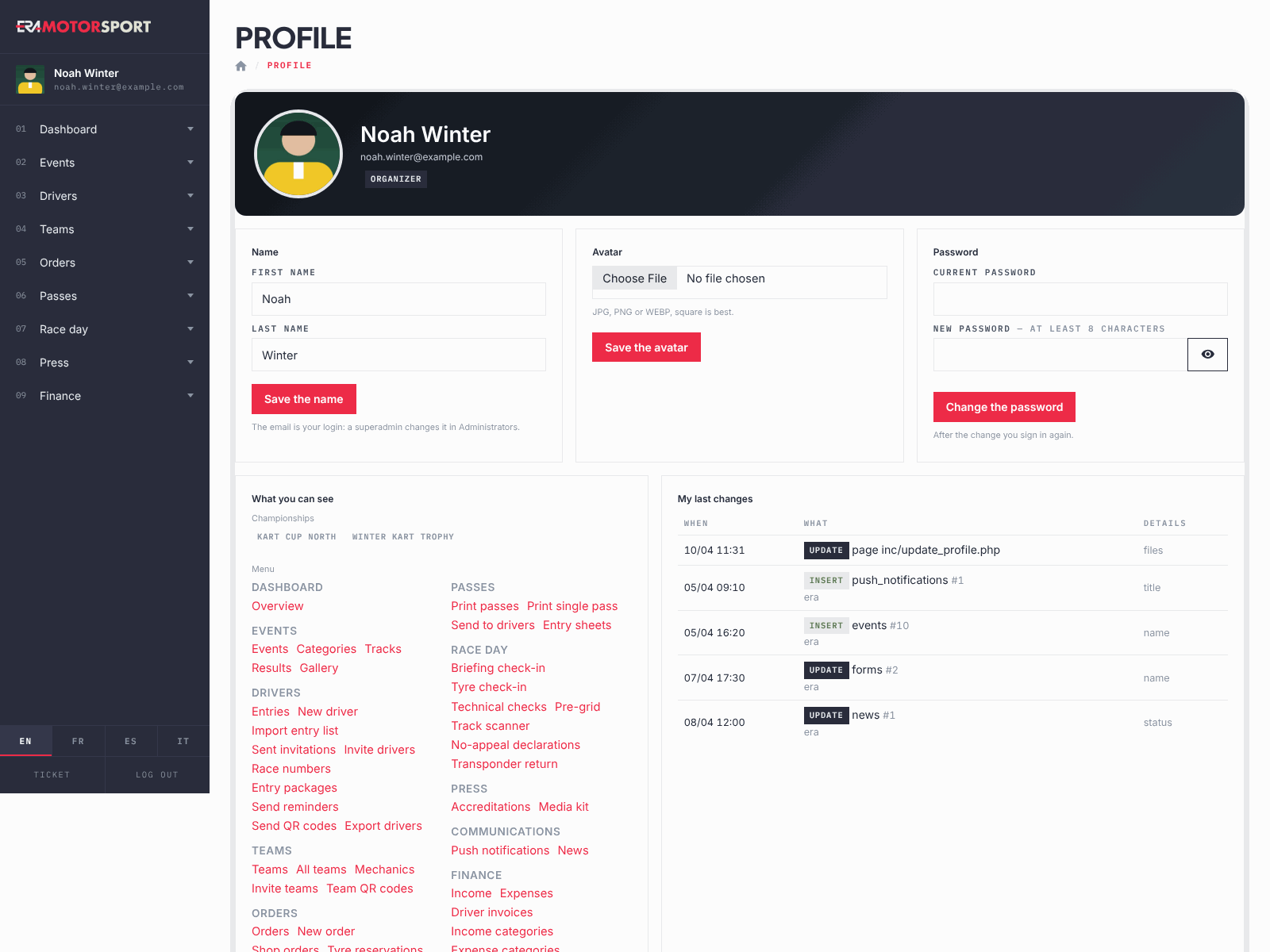
The Profile page is your own account: name, avatar, password, what you can open and what you changed last. The language of ERA is chosen from the menu and saved in your account.
What it is for
Use it when you start with ERA, when you forget what you are allowed to see, or when you want to check what you saved during a busy race day. About the language:
- ERA speaks English, French, Spanish and Italian. The guide shows ERA's buttons in the same language you use in ERA.
- Before you choose, ERA uses the language of your browser if it is one of the four, otherwise English.
- On the sign-in pages the language links work too, but they are remembered only in that browser.
- Data are not translated: names of championships, events and categories, and every text written by the organizers, stay as they were written.
- Race-day prints for the officials come out in the language of the championship, whatever your language. It is set in the championship card, see Championships.
Step by step
- Open the page. Click your name at the top of the menu. The header shows your avatar, name, email and level.
- Change your name. Write First name and Last name and press Save the name. Your email is your login: only a superadmin changes it, in Administrators.
- Change the avatar. Choose a JPG, PNG or WEBP image (square works best). ERA shows a preview. Press Save the avatar.
- Change the password. Write the Current password, then the New password, at least 8 characters and different from the current one. ERA tells you if it is weak, medium or strong; the eye shows what you typed. Press Change the password. ERA closes your session and you sign in again with the new password.
- Check what you can see. Under What you can see you find your championships and, section by section, every menu entry you can open. A superadmin sees all (superadmin).
- Check your last changes. My last changes lists your last 20 changes from the Action log: When, What and Details. A superadmin also has a link to all their changes in the Action log.
- Choose the language. At the bottom of the menu press EN, FR, ES or IT. The page reloads in that language and ERA saves the choice in your account, so it follows you on every computer.
What ERA checks
- First name and Last name cannot be empty.
- The avatar must be a JPG, PNG or WEBP image. Otherwise: The avatar must be a JPG, PNG or WEBP image.
- The current password must be right: The current password is not right.
- The new password needs at least 8 characters: The new password must have at least 8 characters.
- The page changes only your own account.
Common problems
| What happens | What to do |
|---|---|
| No menu entry: ask a superadmin. | Your account has no entries yet. A superadmin sets them in Administrators. |
| Championships shows none | No championship is assigned to you. Ask a superadmin. |
| After changing the password you are on the sign-in page | That is normal: sign in with the new password. |
| Some words stay in English after you change language | Not every text has a translation yet. The rest of the page works the same. |
See also
Something does not match what you see in ERA? Write to us from the contact page.