
13 · System
Administrators Who can sign in to ERA.
In ERASystem › Administrators
Who uses itSuperadmin
The list of everyone who can sign in to ERA: superadmins, organizers and track staff. Only a superadmin can open this page.
What it is for
Use it when a new person joins the race office or the track staff, when someone leaves, or when an organizer starts working on another championship. Here you decide three things for each user: the level, the championships they manage and the menu they see.
Step by step
- Open the list. Go to System › Administrators. Each row shows the user, the Level, the Championships and the Status. Your own row is marked you. Type in the search box to find a name, an email or a championship.
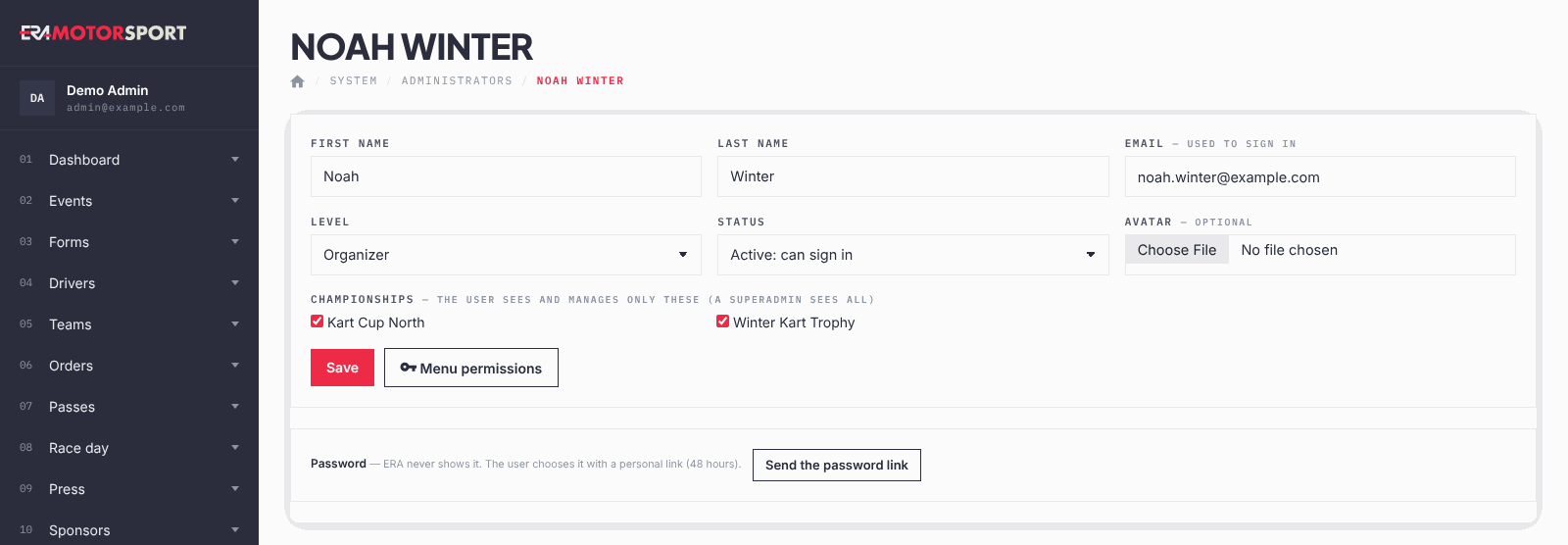
- Create the user. Click New user. Write First name, Last name and Email: the email is what the user types to sign in.
- Choose level and status. Pick the Level (see Admin levels) and the Status: Active: can sign in or Disabled. The Avatar is optional.
- Tick the championships. Under Championships tick the ones the user manages. The user sees and opens only events, entries and orders of those championships. A superadmin sees all of them, so for that level the boxes do not matter.
- Send the password link. Leave Send the email with the link to choose the password ticked and click Create user. The user receives an email with a personal link, valid 48 hours, to choose the password. ERA never shows a password. A user created as Disabled gets no email: when you set him to Active: can sign in, click Send the password link.
- Send it again if needed. If the link expired, open the user and click Send the password link in the Password box. The user can also use the forgotten password link on the sign in page.
- Choose the menu (optional). For a user who is not a superadmin, click Menu in the list (or Menu permissions in the card). Tick the menu items this person sees and click Save the menu of this user. Use the level menu removes the personal choice and goes back to the menu of the level.
The menu decides only what the user sees in the menu. What they can open always depends on their championships. Changes to the menu apply the next time the user signs in.
What ERA checks
- First name, last name and a valid email are required. Two users cannot have the same email.
- A user who is not a superadmin needs at least one championship.
- You cannot delete yourself, disable yourself or remove your own superadmin level: ask another superadmin.
- The last active superadmin cannot be deleted, disabled or moved to another level.
- The avatar must be a JPG, PNG or WEBP image.
- Deleting a user asks for confirmation. After that the person cannot sign in any more.
Common problems
| What happens | What to do |
|---|---|
| The new user did not receive the email. | Check the email address, then click Send the password link. Ask the user to look in the spam folder. |
| The user says the link does not work. | The link is valid 48 hours. Send a new one. |
| An organizer does not see an event. | Open the user and check that the championship of that event is ticked. |
| You changed your own data and nothing changed. | Your changes apply at your next sign in. |
| The menu of a user did not change after you saved the level menu. | The user has a personal menu. Open Menu and click Use the level menu. |
See also
Something does not match what you see in ERA? Write to us from the contact page.