
05 · Teams
Team QR codes The team's key to the counter.
In ERATeams › Team QR codes
Who uses itOrganizer · Track staff
This page lists the teams entered in an event and sends each one its QR code by email.
What it is for
At the track the rule is: who pays collects. What the team bought, such as tyres and products, is collected by the team with its own QR code; a driver collects with his QR only what he paid himself. Send the team QR before the event, so the team manager has it on his phone at the counter and at the tyre desk.
Before you start
Write the text "Team QR code" in Email settings. Without it nothing is sent, and the page shows a warning.
Step by step
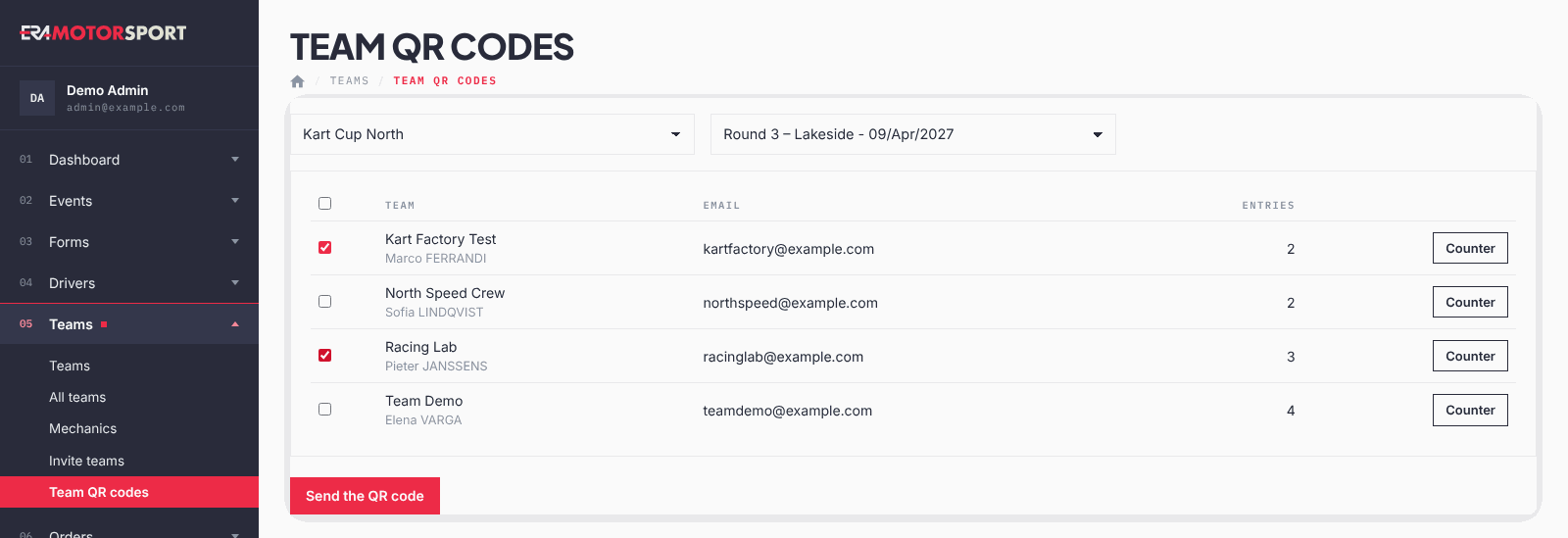
- Open the page. Go to Teams › Team QR codes and choose the championship and the event.
- Check the list. You see each team with the entrant, Email and Entries (its entries in this event that are not cancelled).
- Tick the teams. Tick one, some or all; the box in the header ticks all.
- Send. Press Send the QR code and confirm. ERA says how many teams got it.
- Open the team at the counter. Counter on a row opens the team card on this event, as when you scan its QR code.
What ERA checks
- Only teams with an email and at least one entry not cancelled in the event appear, from the event forms and from season passes that cover it.
- You must tick at least one team.
- The QR code contains only the team email. It is the same for every event.
- The sending is written in the Action log.
Common problems
| What happens | What to do |
|---|---|
| No team entered in this event. | No team has entries in this event. Check the event chosen. |
| Write the "Team QR code" text in Email config first. | Write the text in Email settings and send again. |
| A driver of a team cannot collect the team's tyres with his own QR. | Correct: the team bought them, so the team collects them with the team QR. |
See also
Something does not match what you see in ERA? Write to us from the contact page.