
Email settings Sender and texts of the emails.
The emails of a championship: from which address they leave, who receives a copy of the entries, and the texts of every automatic email.
What it is for
Drivers and teams receive many emails: invitations, payment confirmations, passes, QR codes, reminders. Each championship can write them in its own words. A text you leave empty uses ERA's default text.
Before you start
You see the page if your level or your own menu includes it, and you work only on your championships.
Step by step
- Choose the championship. Go to System › Email settings and choose the championship at the top.
- Set the sender. In Sender write the address the automatic emails of this championship come from. If it is empty, ERA uses its default sender.
- Set the copy. In Copy of the entries write the addresses that get a copy of the entries, separated by comma.
- Write the website confirmations. In Confirmations of the website open a box (Entry confirmation (round or season pass), Tyres reservation confirmation, Photo packs confirmation) and write the text added to the confirmation email after a payment.
- Write the ERA emails. In Emails sent from ERA open the email you want to change, for example Driver invitation or Registration reminder (invited drivers not registered yet). Write the Subject and the Message. Under the box you see the Default text: for comparison.
- Use placeholders. Write them in the subject or the message and ERA fills them in for each person, for example
{first_name},{event},{race_number},{link},{qr}. The full list is at the top of the box; hold the mouse on one to read what it contains. - Save. Click Save the email config. ERA saves only the texts you changed.
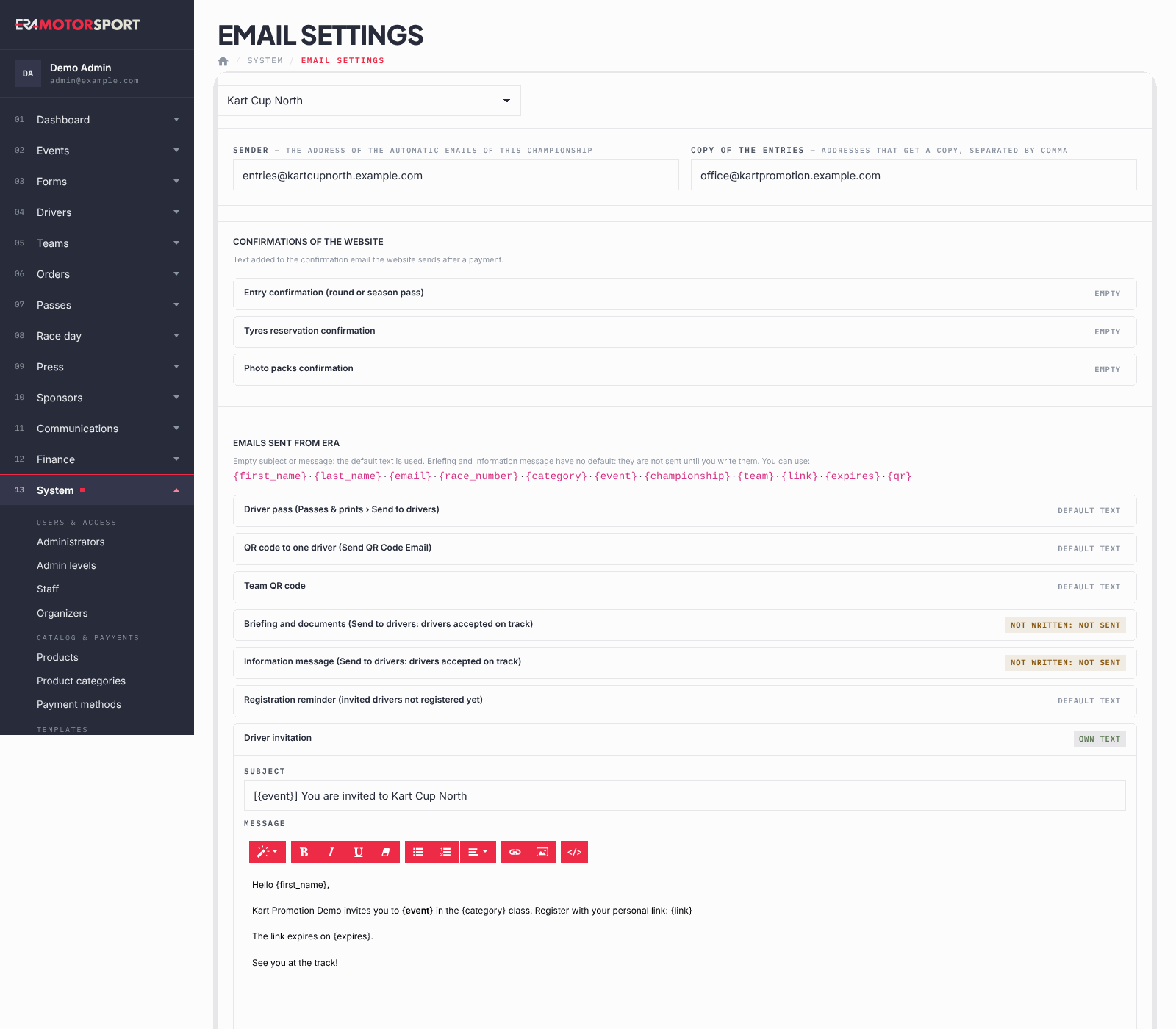
Each email shows its state: own text, default text or not written: not sent. The briefing email and the information message have no default text: ERA does not send them until you write them. For these two, own text appears also when only the subject is written: they are sent only when the message has text.
The placeholders you can use:
| Placeholder | What ERA writes |
|---|---|
{first_name} {last_name} |
Name of the driver, or of the entrant for a team |
{email} |
Email of the account |
{race_number} |
Race number |
{category} |
Category |
{event} {championship} |
Event and championship name |
{team} |
Team name |
{link} |
The link of the email: registration, driver area or password |
{expires} |
A sentence with the expiry date of the invitation; empty if it does not expire |
{qr} |
The QR code image of the person |
A placeholder that has no value for that email (for example {race_number} in an invitation) is left out.
What ERA checks
- Sender and Copy of the entries must contain valid email addresses.
- An empty subject or message uses the default text.
- An invitation text written in the form itself has priority over the text of the championship.
- Every save is recorded in the Action log.
Common problems
| What happens | What to do |
|---|---|
| Drivers did not receive the briefing email. | The text is not written: not sent. Write it and send again. |
The email shows {race_number} as empty. |
That email has no race number (for example an invitation). Remove the placeholder. |
| The link in the email does not work. | Write {link} as it is, or select a word and make it a link to {link}. |
| You want the default text back. | Empty the subject and the message and save. |