
The team card One team, all its data.
The team card shows one team as the team sees itself in its team area on the website, and lets you do on its behalf everything the team can do there. It opens from Teams, All teams, Mechanics and from the QR code of the team at the counter.
What it is for
A team enters several drivers with one order and pays once for all of them. When the team pays by bank transfer or at the track, when a driver must join or leave the roster, or when the team arrives at the counter, you work here. The top line shows the entrant, the email and the telephone of the team. The card has six tabs: Entries, Drivers, Mechanics, Karts, Profile, Orders.
Before you start
- The number of mechanics a driver can have is set per championship in Mechanics. With 0, the mechanics of the entries cannot be changed.
- The emails sent from the card (request to a driver, new driver, driver taken out, password link) use the texts of Email settings whose names start with "Team:".
Entries
The tab shows one box per event, from today on. Use Show past events too to see the past ones. When you arrive from the counter or from Teams, only that event is shown; All upcoming events shows the others.
- Find the event. Each box has the event name and date, the team order and the table of the drivers entered by the team, with Category, N°, Status and Mechanics.
- Confirm the payment of the order. For an order To pay, choose the method (Bank transfer, Paid on track, Cash, Card (POS), Other), write a note if useful (for example the bank reference) and press Confirm payment. ERA asks for confirmation: the payment covers the whole order. The order becomes Paid and all its entries waiting for payment become Confirmed.
- Accept the drivers on track. Use the tick icon (Accept on track) or the cross icon (Deny on track) on each row, or Accept all on track at the top of the box for all drivers not cancelled and not yet accepted.
- Choose the mechanics. In the Mechanics column press change, tick the team's mechanics for that driver and press Save.
- Edit or cancel one entry. The pencil icon opens the entry card. The bin icon cancels the entry; on a cancelled entry the same place shows Restore.
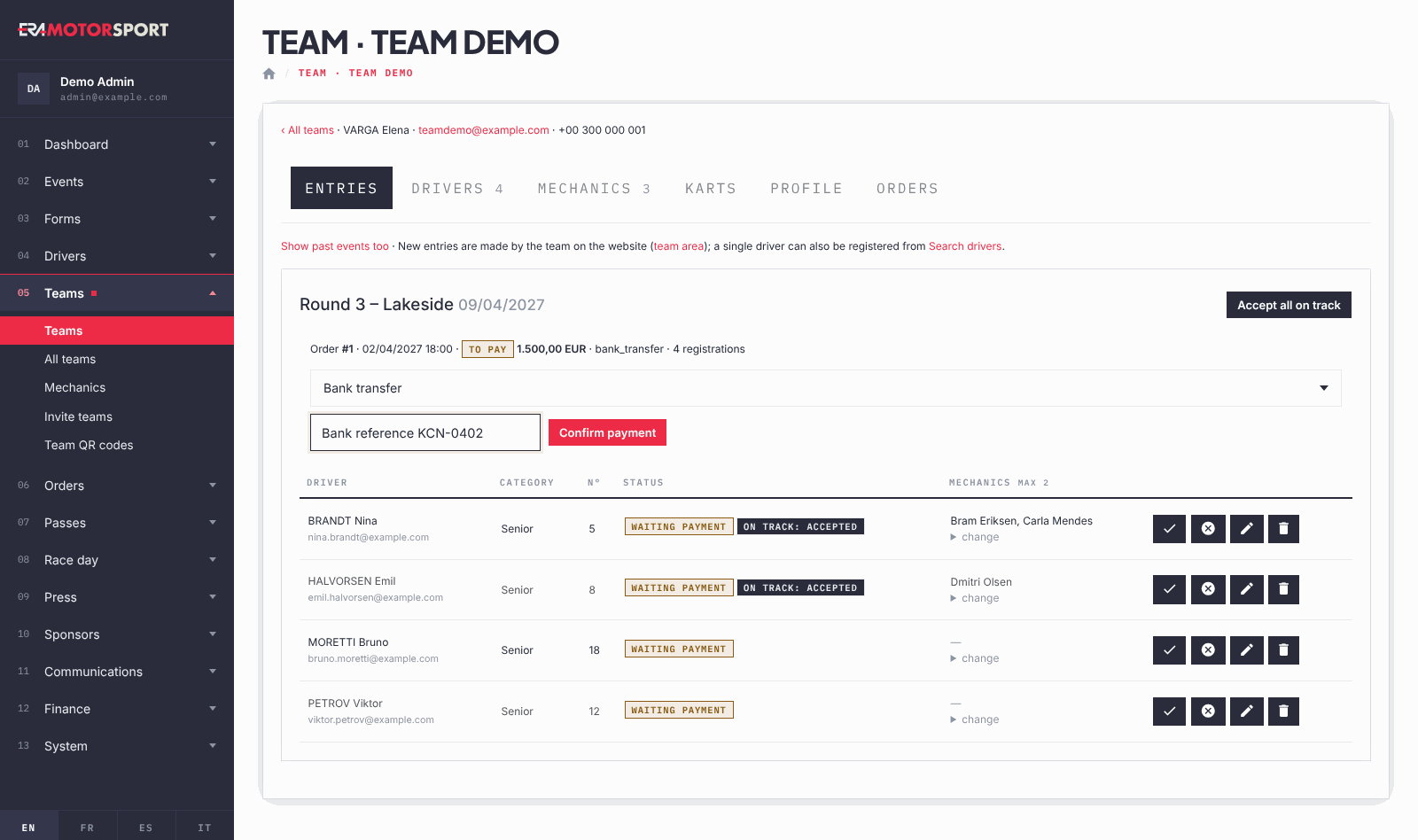
For a season pass the row shows Season pass and the form name. A season pass driver is accepted on track event by event: accepting the driver at one event does not accept the driver at the others. Deny on track instead blocks a season pass driver at every race of the pass: accept the driver again where needed. A row with registered by the driver for the team is an entry the driver made himself, choosing the team, with no team order.
When you open the card from the scanner and no driver of the team is entered in that event, ERA shows NOT REGISTERED. Use Register drivers of this team now (paid at the counter) to enter them at the driver desk.
Drivers
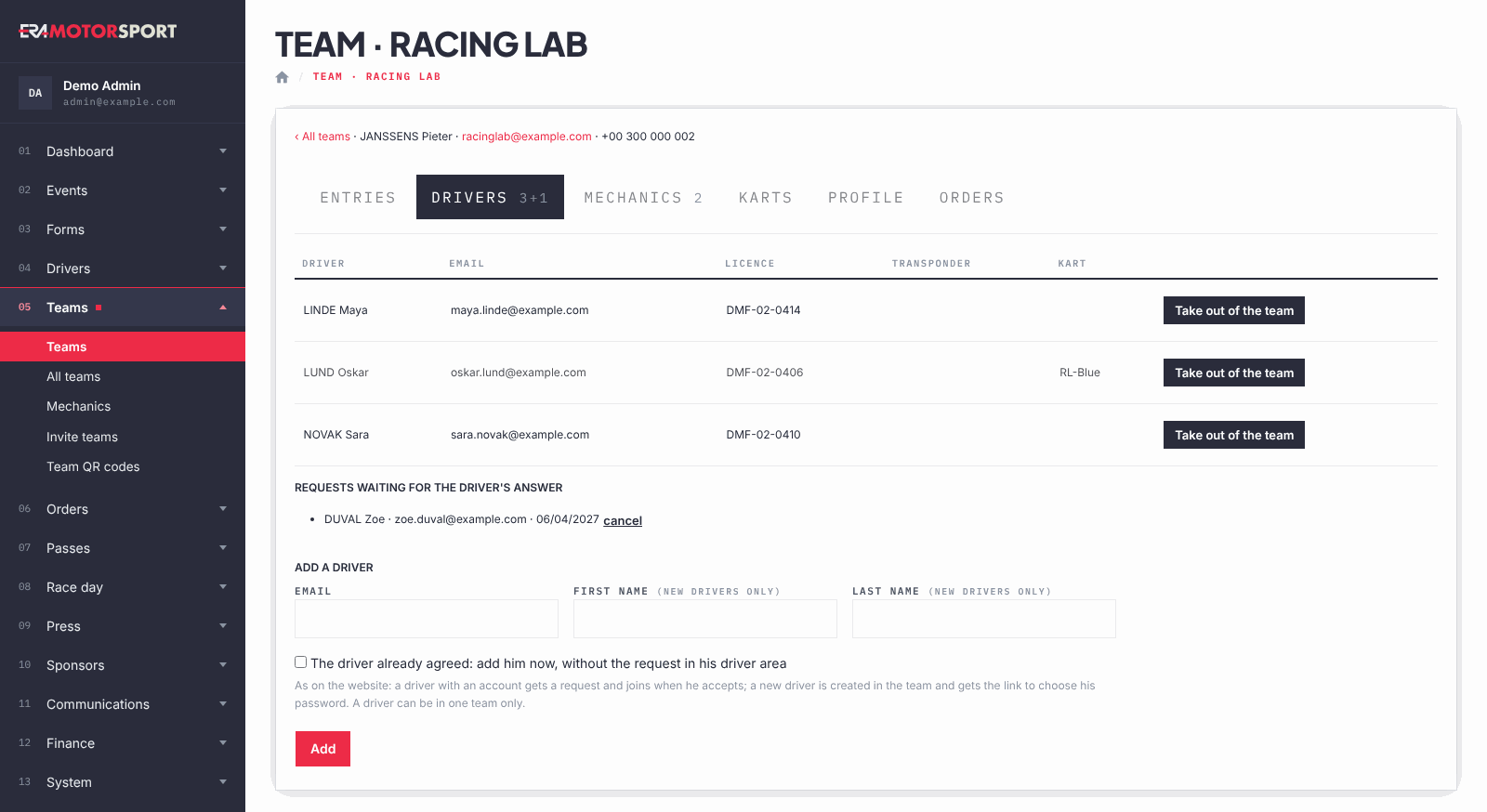
- Read the roster. The table shows each driver with email, licence, transponder and kart. no password yet means the driver has not chosen his password.
- Add a driver. Under Add a driver write the Email. For a driver with no account, also write first and last name. Press Add.
- Skip the request if the driver already agreed. Tick The driver already agreed: add him now, without the request in his driver area before Add.
- Take a driver out. Press Take out of the team and confirm. His entries stay as they are, his kart in this team is freed and he gets an email.
Under Requests waiting for the driver's answer you see the requests not yet answered; cancel withdraws one.
Mechanics, karts and profile
- Mechanics. Add a mechanic with Name, Licence and an optional photo (JPG or PNG), then Save. Edit changes one. The bin icon appears only for a mechanic who is in no entry.
- Karts. Add a kart with Nickname, Driver, photo, Chassis brand, Chassis model, Chassis serial, Homologation and two engines, then Save. The chassis brands come from the option lists. A driver who already has a kart is greyed out in the list.
- Profile. Team name, login email, entrant data, website, invoicing data (Invoice to (first and last name), VAT number, Company address) and biography; press Save the profile. The invoicing data are used for the team in the invoices export. The pictures are uploaded by the team on the website. The button at the bottom sends the team the link to choose a new password, valid 7 days.
Orders
The tab lists every order of the team on the website: date, what it is (Entries, Tyres and products, Photos, On track), event and form, total and status. The Entries button opens the entries of that event. Tyre and photo payments are confirmed in Tyre reservations and Media reservations, on-track purchases in Orders.
What ERA checks
- You see the card only if the team races in one of your championships, or has no entries and no orders yet. If the team also races elsewhere, you can change only the entries of your championships.
- A cancelled order cannot be confirmed as paid.
- Cancelling an entry of an order still to pay lowers the order total. If the entry was paid, ERA does not refund it: the refund is done by hand.
- Restoring an entry makes it Confirmed if its payment is paid, otherwise waiting for payment.
- Mechanics per entry: only the team's own mechanics, and no more than the championship allows.
- A driver can be in one team only. A driver with an account gets a request and joins when he accepts it in his driver area. A new driver is created in the team and gets the link to choose his password (valid 7 days). Adding an existing driver directly moves him from his previous team.
- ERA refuses an email that is not valid, a driver already in the team, or a second request to the same driver.
- One kart, one driver. Nickname and chassis model are required. Mechanic name and licence are required.
- Team name and a valid email are required in the profile, and no other team can use the same email. After a change of email the team signs in with the new one.
Common problems
| What happens | What to do |
|---|---|
| Team not found, or not in your championships. | The team races only in championships you do not manage. Ask an organizer of that championship, or a superadmin. |
| The team paid by bank transfer but its drivers are still waiting for payment. | Confirm the payment of the order in the Entries tab: one confirmation confirms all the drivers of the order. |
| At the counter the entry of a team driver cannot be collected. | It is part of a team order: collect the payment here, in the team card, not on the driver's counter page. |
| You cannot delete a mechanic. | He is chosen in some entries. Take him out of them first, or just rename him. |
| The mechanics of an entry cannot be changed. | The championship allows 0 mechanics, or the team has no mechanics yet. |