
Track scanner The administrative checks.
The starting point of the administrative checks: scan a QR code and ERA opens what belongs to it.
What it is for
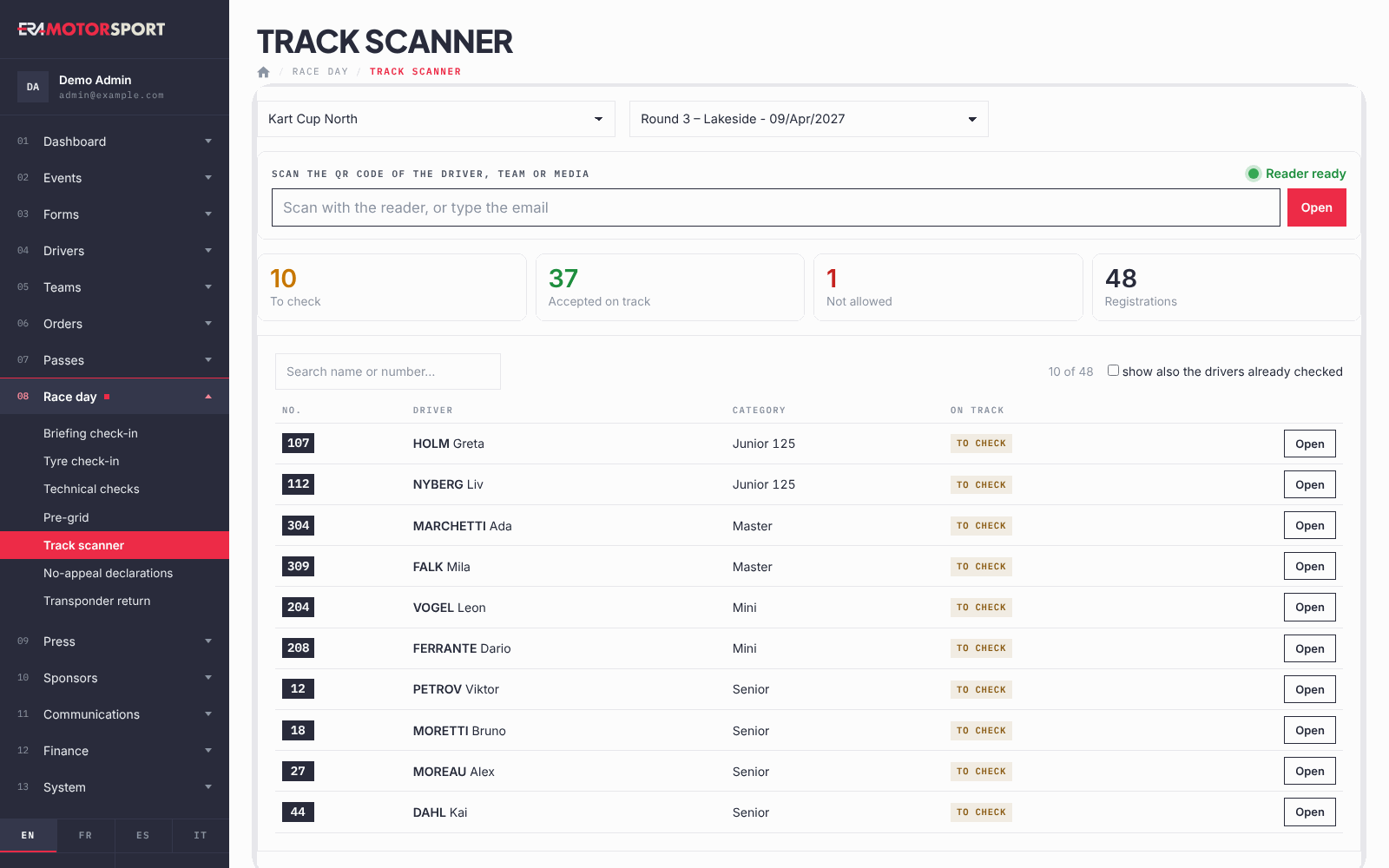
At the race office every driver shows his pass or the QR code on his phone. You scan it here and ERA opens the desk card of the driver, where you check documents, collect what is due and accept him on track. The counters on top tell you at any moment how many drivers are still to check.
Before you start
The way codes are read is set in the championship: Events › Championships, box Live desk, Pass reader. The same choice applies to Race day › Tyre check-in and Race day › Briefing check-in.
- Webcam: the camera opens by itself on any device. Close the camera closes it; Camera opens it again.
- Barcode scanner: a USB reader that types the code and presses Enter. The box stays active, with the light Reader ready.
At the technical checks an Android handheld with the ERA Race day app can read the passes and show who is accepted, to the counter or not allowed, also without network. The desk work (data, payments, acceptance) stays on this page: see The ERA Race day app.
Step by step
- Open the page. Go to Race day › Track scanner and choose the championship and the event.
- Read the counters. To check, Accepted on track, Not allowed and the total of Registrations. When nobody is left to check, the total says checks finished.
- Scan the QR code. Scan it with the reader or the camera, or type the email and press Open.
- Work at the desk card. ERA opens the card of the driver. When you are done, Scan another QR brings you back here.
- Find a driver without QR code. In the list below, search by name, number or email and press Open on his row. The list shows only the drivers still to check; tick show also the drivers already checked to see everybody.
What ERA checks
The QR code contains only an email. When you scan it, ERA looks for that email in this order:
- a driver entered in this event (event form or season pass that covers it): his desk card. With more entries at the same event, buttons let you switch between them;
- a team with drivers entered in this event: the team card, on this event;
- a driver or a team not entered here: a red NOT REGISTERED message, with the buttons to register them now at the counter (see The driver at the desk);
- a media account: the accreditation status for this event;
- an unknown email: No driver, team or media account in ERA with this email., with the button to register a new driver with that email.
If the pass of the person was deactivated in System › Wallet passes, a red banner says so in large letters.
Common problems
| What happens | What to do |
|---|---|
| "Nothing read: scan the QR code again." | The reader sent an empty code. Scan again, closer and steadier. |
| The reader does nothing | The light is red: tap the box once so it says Reader ready. |
| NOT REGISTERED for a driver who paid | He may have registered with another email. Search him by name or number in the list of drivers on this page. |
| The camera does not open | Allow the camera in the browser, or use the reader and switch the championship to Barcode scanner. |