
08 · Race day
Tyre check-in The tyre desk.
In ERARace day › Tyre check-in
Who uses itTrack staff
A full-screen page for the tyre desk: scan the QR code of who collects, then scan each tyre. ERA counts down what is left to deliver.
What it is for
At the tyre desk you hand out the tyres bought for the event, often with a queue and little time. The page shows in large figures how many tyres of each type are still due, makes a sound for each right or wrong scan, and never lets you deliver more than was paid.
Before you start
- Tyres are the products of the product categories with "Tyres" in their name. Paid shop orders of this event count, and paid tyre reservations made with an order on the website. Older reservations without an order count only if the ERA technical team has turned this on for your championship: if a reserved tyre does not appear, check it in Tyre reservations and ask the ERA technical team.
- Each tyre code is the number of the tyre product in ERA, in digits only. A code with letters, for example the barcode of the tyre maker, is read as the QR code of a driver or team.
- The way codes are read is set in the championship: Events › Championships, box Live desk, Pass reader. With Webcam the camera opens by itself and stays open for the tyre codes and the next driver; Camera opens it again if you closed it. With Barcode scanner the reader box is always active, with the light Reader ready.
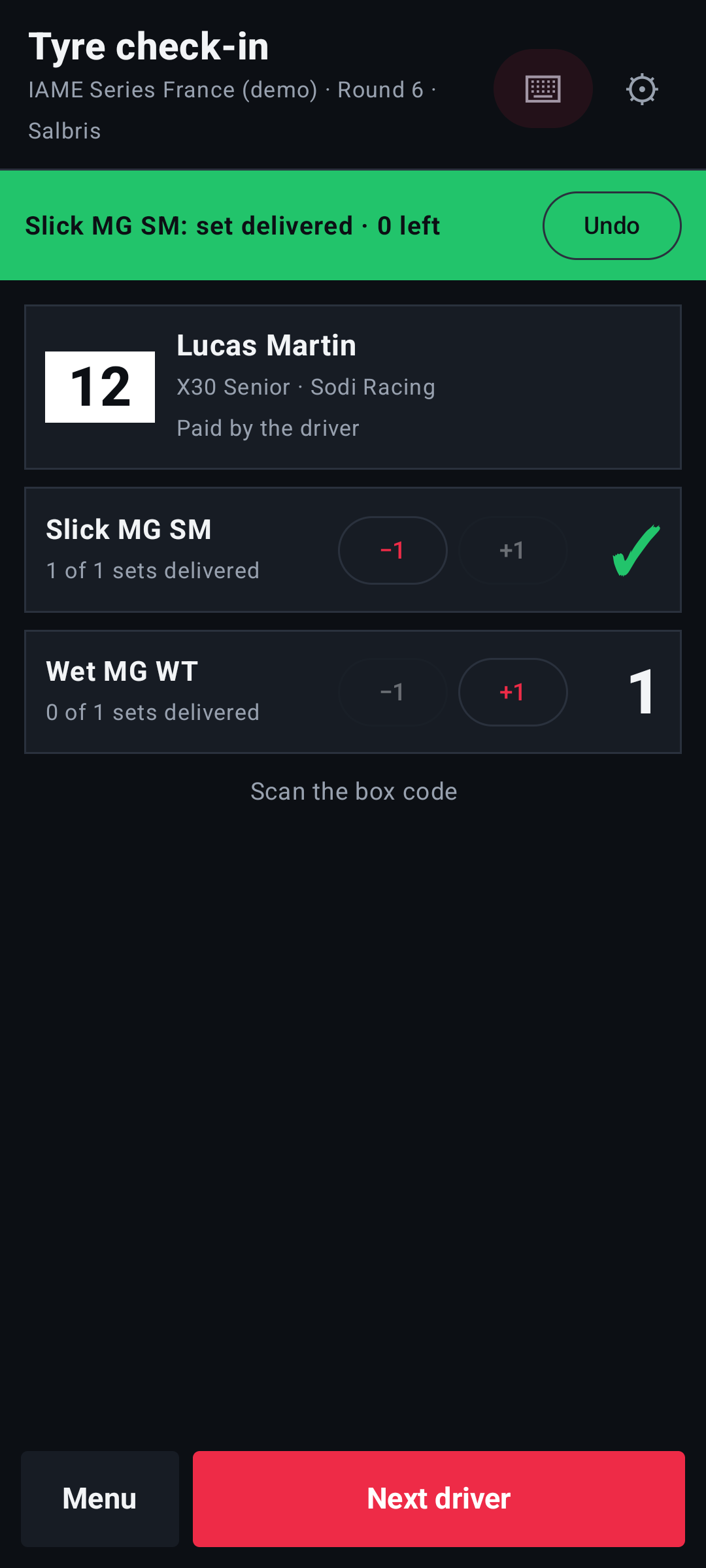
- The same desk can work on Android handhelds with the ERA Race day app, also without network. The deliveries made there are counted here too, and the other way round: see Devices and The ERA Race day app.
Step by step
- Open the page. Go to Race day › Tyre check-in, choose the championship and the event, and press Start the tyres check-in. The event stays fixed until you press Change event.
- Scan the QR code of who collects. The driver's pass or the team's QR code. Without a code, press Type the email instead, write the email and press Open.
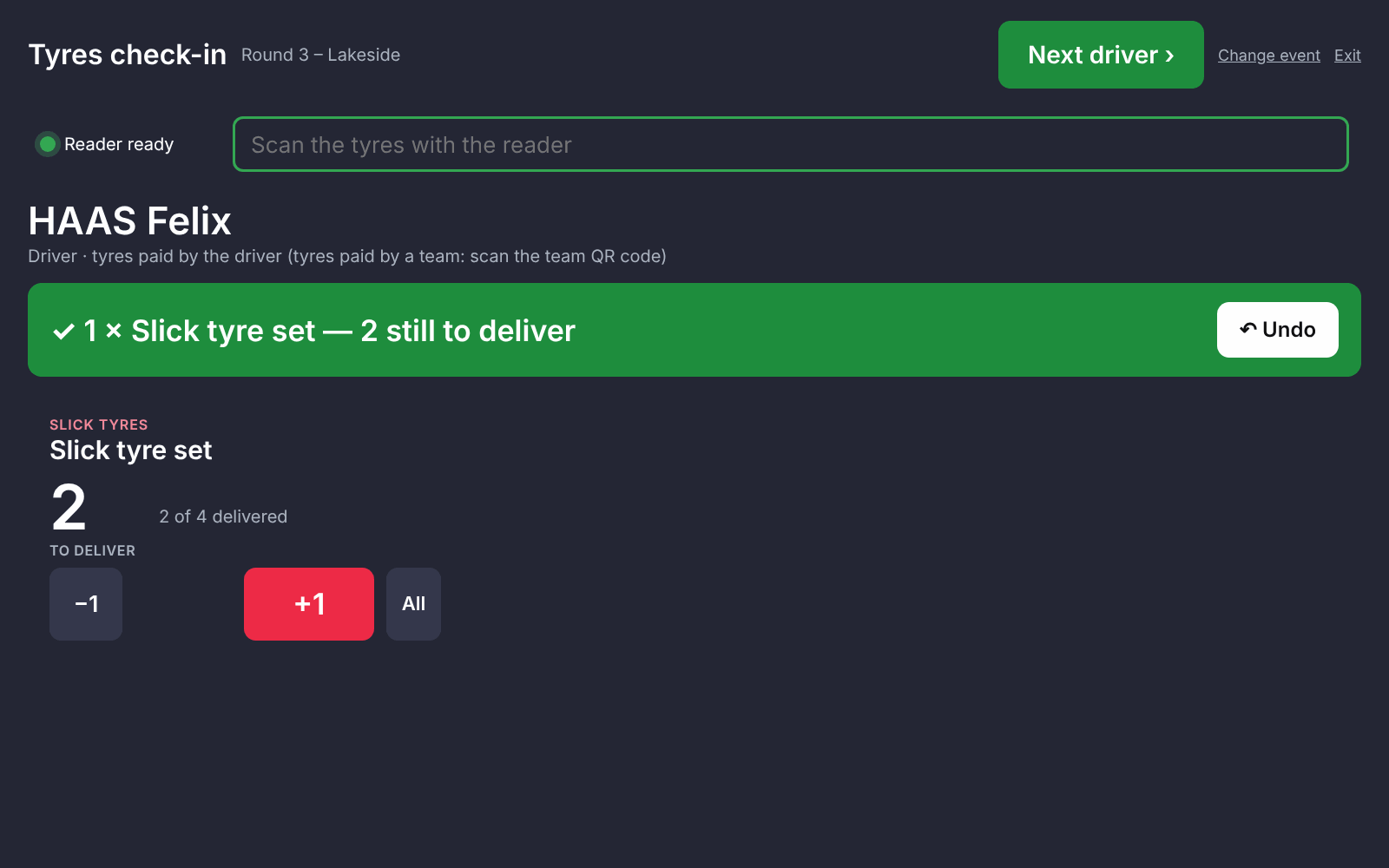
- Read what is due. For each tyre type you see in large figures how many are still to deliver, and "2 of 4 delivered". A team sees also for which driver each tyre was bought.
- Scan each tyre. The number goes down at once, with a sound. If you have no code to scan, press +1, or All and confirm to deliver all the remaining tyres of that type.
- Correct a mistake. Right after a delivery press ↶ Undo in the message bar (it stays for 20 seconds). Later, press −1 on the tyre type and confirm with Yes, take back 1.
- Next one. When everything is delivered the page says ✓ All tyres delivered. Next driver!. Press Next driver ›, or simply scan the next QR code. Exit opens the track scanner.
What ERA checks
- Who pays collects. With the driver's QR code you see only what the driver paid himself. Tyres paid by a team are collected with the team QR code, even if they were bought for one of its drivers.
- Never beyond what was paid. ERA refuses a delivery above the paid quantity, also when two scans arrive at the same moment: Quantity already fully delivered, or "Only … left to deliver".
- A tyre code that is not in the order gives a red message and a low sound.
- A tyre code scanned before any QR code is refused: first scan the driver or the team.
- With the camera, the same tyre held in front of it counts once: move it out of the frame before showing the next one of the same type.
- If one email is both a driver and a team account, a link shows the purchases of the other one.
- If the pass was deactivated in System › Wallet passes, a red banner says so.
Common problems
| What happens | What to do |
|---|---|
| No tyres to deliver in this event. | Nothing paid by this driver or team. If a team paid, scan the team QR code. If the order is not paid, send him to the race office. |
| "This tyre is not in the order" | Wrong tyre type for this order. Check the tyre and the order. |
| "QR code not recognised: …" | The code is not the email of a driver or team in ERA, or it is a tyre code with letters. Press Next driver › and scan the QR code again, or press Type the email instead. |
| The reader does nothing | The light is red: tap it so it says Reader ready. |
| A tyre was counted twice | Press ↶ Undo or −1. |
| ✗ Connection problem: scan again. | The network dropped for a moment. Scan again. |
See also
Something does not match what you see in ERA? Write to us from the contact page.