
08 · Race day
Briefing check-in Who is at the briefing.
In ERARace day › Briefing check-in
Who uses itTrack staff
A full-screen page for the door of the drivers' briefing: scan the QR code, read the colour, let the driver in.
What it is for
Use it on a touch screen with a reader at the entrance of the briefing room, or on a phone with the camera. ERA records who attended, shows how many are in out of all the drivers entered, and gives the list of who is still missing.
Before you start
The way the page reads the codes is set in the championship: Events › Championships, box Live desk, Pass reader.
- Webcam: the camera opens by itself, on any device (phone, tablet or a PC with a webcam). It stays open for the next driver.
- Barcode scanner: a USB reader, which types the code and presses Enter. The reader box is always active, with a light that says Reader ready in green. If it says Tap here for the reader, tap it once.
The door can also work with an Android handheld and the ERA Race day app, also without network: see The ERA Race day app.
Step by step
- Open the page. Go to Race day › Briefing check-in, choose the championship and the event, and press Start the briefing check-in. The event stays fixed until you press Change event.
- Scan the QR code of the driver. On the pass, or on the phone of the driver.
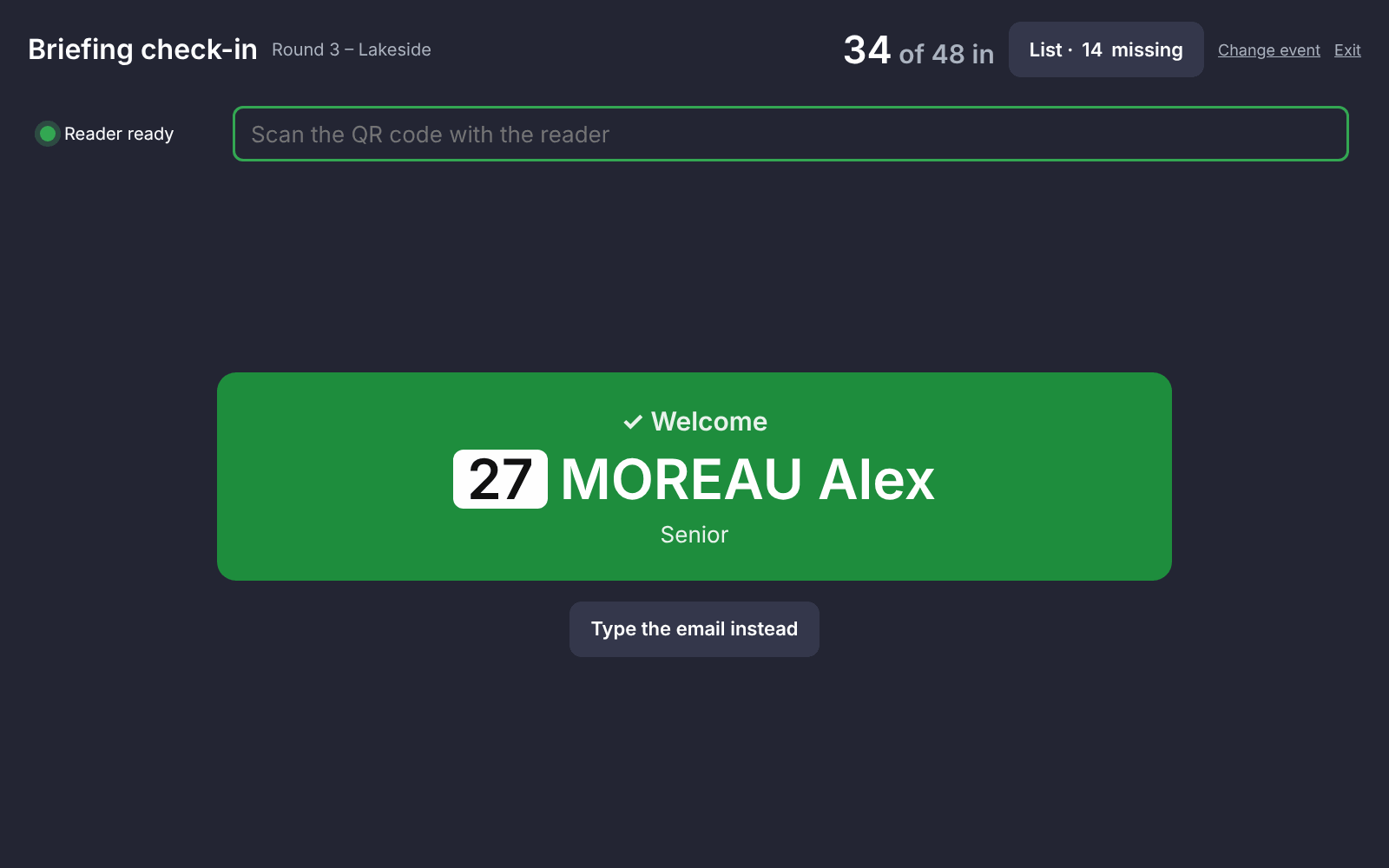
- Read the answer. It fills the screen with a sound, then the page is ready for the next driver after a few seconds:
- green ✓ Welcome: checked in;
- yellow ! Check: the driver was already checked in, or he is checked in but not yet accepted at the administrative checks. Send him to the desk after the briefing;
- red ✗ No check-in: the QR code is not recognised, or the driver is not entered in this event. Nothing is saved.
- No QR code with him? Press Type the email instead, write his email and press Check in.
- See who is missing. The button on top shows how many are missing. In the list, filter Missing, Present or All, and search by name or number. Press Check in on a row to check a driver in by hand.
- Correct a mistake. In the list press Cancel on the driver, then Yes, cancel it.
- Back to scanning. Press Scan QR codes. Exit opens the track scanner.
What ERA checks
- The driver must have a non-cancelled entry in the event, or a season pass that covers it.
- A driver is counted once, even with two entries in the event or if he is scanned twice.
- A driver not yet accepted at the administrative checks is checked in, but the answer is yellow and the list marks him not accepted on track. For a season pass, the acceptance must be at this race.
- A pass deactivated in System › Wallet passes is not flagged here: the check-in is saved as for any driver. Deactivated passes show up at the track scanner.
Common problems
| What happens | What to do |
|---|---|
| The reader beeps but nothing happens | The light is red: tap Tap here for the reader and scan again. |
| "The camera is not available on this device (or permission was denied)." | Allow the camera in the browser, or switch the championship to Barcode scanner. |
| Red answer for a driver who says he is entered | He may be using another email, or his entry is cancelled. Check him at the track scanner. |
| "Connection problem: scan again." | The network dropped for a moment. Scan again: nothing was saved twice. |
See also
Something does not match what you see in ERA? Write to us from the contact page.