
The driver at the desk One card, one Save.
After you scan a driver at the track scanner, ERA opens his desk card (Counter on track). Everything you do there is saved together with one button.
What it is for
At the administrative checks you have a few minutes per driver. On one card you check his data with him, look at his licence and medical certificate, have him sign on the tablet, hand over what the entry includes, sell products from the shop, collect what he owes and accept him on track.
Before you start
- The payment methods shown at the desk are chosen per championship in System › Payment methods, box ERA counter on track. If none is ticked, all methods are shown.
- The products of the Shop on track are the active products of the championship.
Step by step
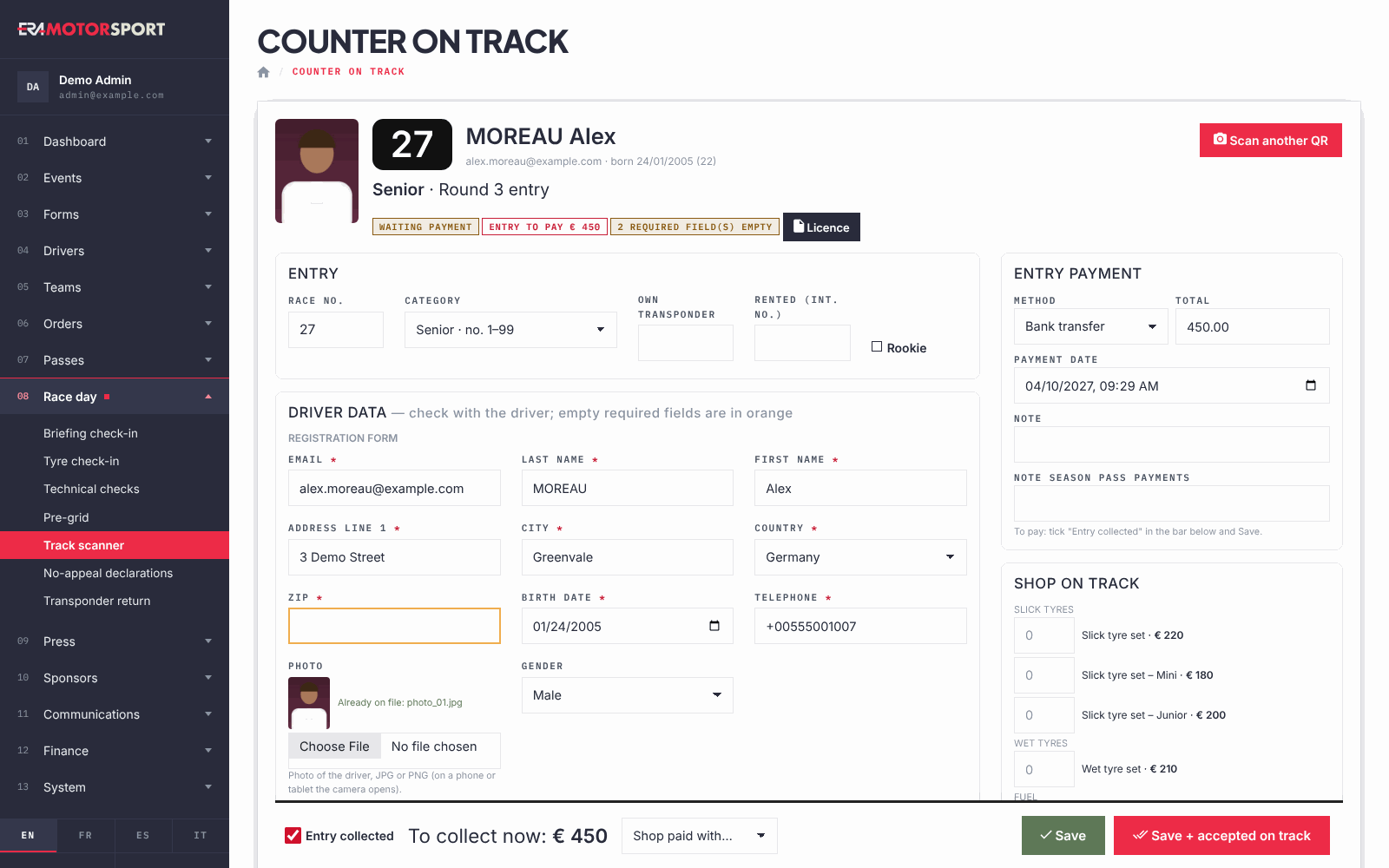
- Read the top of the card. Photo, race number, name, email and age; category, form, team and the Season pass badge. The badges say whether the entry is paid (Entry paid) or how much is due (ENTRY TO PAY with the amount), and how many required fields are empty. Licence and Medical certificate open the documents on file.
- Check the entry. In Entry correct if needed Race no., Category, Own transponder, Rented (int. no.) and Rookie.
- Check the driver data with him. Driver data shows all the fields of his form. Empty required fields are in orange: fill them now, or later. The guardian fields appear only for a driver under 18 at the date of the event, or with no birth date yet.
- Collect the signatures. Signature fields are boxes where the person signs with a finger on the tablet, or with the mouse. Clear starts again. A signature already on file stays unless someone signs again.
- Hand over what is included. In Included in the entry tick each item you give (ticket, product, T-shirt size). ERA records when it was given.
- Sell from the shop. In Shop on track write the quantity of each product, add a note if useful, and choose the method in Shop paid with…. To collect now: shows the total.
- Collect the entry, if due. In Entry payment choose the Method, check the Total, and tick Entry collected in the bar at the bottom. For an entry already paid, change a value here and save to correct it.
- Save. Save saves everything. Save + accepted on track saves and accepts the driver on track for this event. Then press Scan another QR.
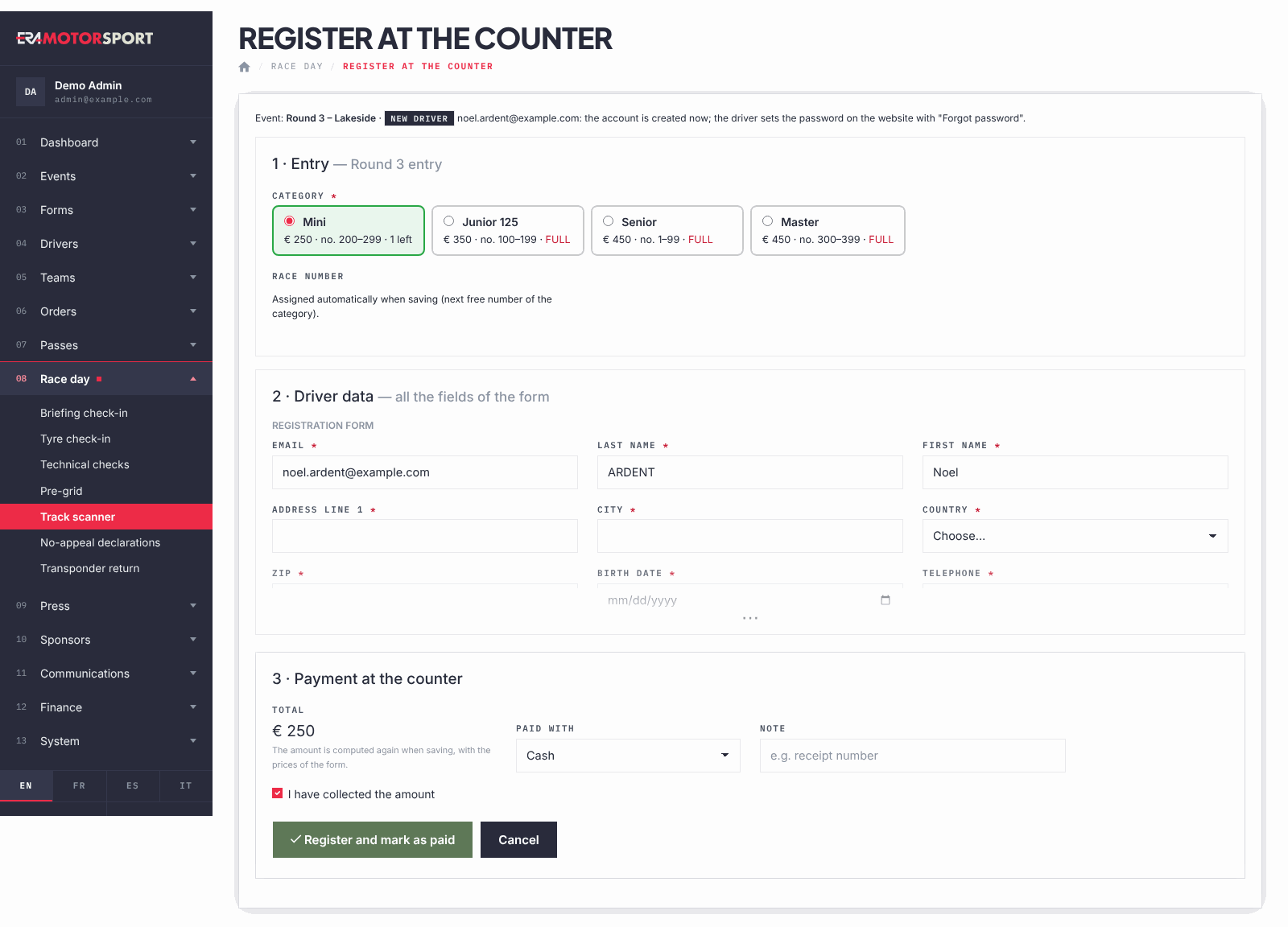
A driver or a team not entered yet. When the QR code belongs to a driver not entered in the event, or to an unknown email, the scan shows NOT REGISTERED and one green button per form of the event. Forms closed online can still be used here, and are marked as closed online. The page Register at the counter has three parts: 1 · Entry (category, ticket, race number), 2 · Driver data (all the fields of the form) and 3 · Payment at the counter. Fill it with the driver, choose Paid with, tick I have collected the amount and press Register and mark as paid: the desk card of the new entry opens. A new email creates a new driver account; the driver sets his password later on the website with "Forgot password".
For a team QR code with no driver entered yet, Register drivers of this team now opens Register team drivers at the counter: tick the drivers of the roster, choose the category and the number of each, and collect one payment for the whole team. Missing data of a driver does not block it: complete it later from his entry.
What ERA checks
- Wrong values (an invalid phone number, email or date, a value already used by another driver where the form wants it unique) block the save, and nothing is written. Empty required fields do not block the desk: they stay in orange.
- A race number already used by another driver in the same class at this race is not taken: the number stays the one of before and ERA proposes a free one.
- A driver cannot have two entries in the same category of the form.
- Shop products need a payment method. The entry payment needs a method among those of the counter.
- An entry in a team order is paid by the team: the card says TEAM ORDER TO PAY and links to the team card, where you collect it.
- If the form gives race numbers automatically, the number is assigned when you collect the entry.
- For a season pass, Save + accepted on track accepts the driver for this race only. At the next round he is to check again.
- An unpaid shop order can be deleted from the list of orders at this event, at the bottom right; a paid one cannot.
- At the counter registration, a driver whose season pass already covers the event cannot be registered again.
- If you leave the card with changes not saved, the browser asks for confirmation.
Common problems
| What happens | What to do |
|---|---|
| "Nothing was saved: check the fields in red." | Correct the fields with a red message and press Save again. |
| "Choose how the shop order is paid." | Choose the method in Shop paid with…. |
| "Choose how the entry was paid." | Choose the Method in Entry payment. |
| The page expired, nothing saved | The card stayed open too long. Check the values and press Save again. |
| "The driver already has another registration in that category." | Choose another category, or open his other entry with the buttons on top. |
| A red banner says the pass is deactivated | The pass was blocked in System › Wallet passes. Ask the race office before going on. |
| No form to register a driver at the counter | Create a registration form for the event in Forms › Forms. |