
Devices Handhelds at the desks.
Here you connect the Android handhelds that work at the tyre desk, at the briefing door and at the technical checks with the ERA Race day app. They keep working when the network at the track drops.
What it is for
At the track the network is not always there, and a queue at the tyre desk cannot wait for it. A handheld with a built-in barcode reader downloads the event data, checks every scan by itself and sends what it did to ERA when the network is back. The deliveries go to the same records as the Tyre check-in and Briefing check-in pages: what is done on a handheld is seen in ERA, and the other way round.
One app does three jobs: Tyre check-in (tyre desk), Briefing check-in (briefing door) and Track scanner (technical checks). How the app is used at the desk is in The ERA Race day app.
Before you start
- The Race day devices add-on is switched on per championship by the ERA administrators, with the number of handhelds included. Without it the page shows The add-on is not active for this championship.
- You need handhelds with a built-in barcode reader and the ERA Race day app installed. The phone camera is not used to read codes.
- The tyres are the products of the categories with "Tyres" in their name, as for the Tyre check-in page.
- You work only on your championships.
Step by step
- Open the page. Go to Race day › Devices and choose the championship at the top.
- Set the add-on. In Race day devices add-on:
- a superadmin ticks Active for this championship and writes how many Devices included; the others read "active" or "not active" and how many devices are in use;
- tick Tyre tracking: scan the serial of every tyre if the desk must read the serial of each tyre;
- write the Supervisor PIN, 4 to 8 digits. On the handheld it unlocks a delivery beyond what was paid (a payment taken during a network outage), the exit from kiosk mode and the disconnection of the device. Leave the field empty to keep the PIN you set before.
- Press Save.
- Add a handheld. In Devices write a name you will recognise on the desk, for example "PDA 1 · Tyre desk", and press Add device.
- Pair it. A box opens with a QR code and a pairing code, for example K7P-4Q2. Open the ERA Race day app on the handheld and scan the QR, or type the code. The code is valid for 10 minutes and one time only: if it expires, press Pairing code on the line of the handheld for a new one.
- Choose what it does. On the line of each handheld:
- Event: Automatic takes the event in progress or starting within 3 days; or choose one event;
- Functions: Tyre check-in, Briefing check-in, Track scanner. With one function the handheld opens straight on it; with more, the staff chooses on the handheld;
- Language: the language of the championship, or English, French, Spanish or Italian. The staff can change it on the handheld too.
- Press Save. The handheld gets the change at its next connection.
- Set the tyre codes. See Tyres on the handheld below.
- The evening before the race day, download the backup: see Backup for the race day.
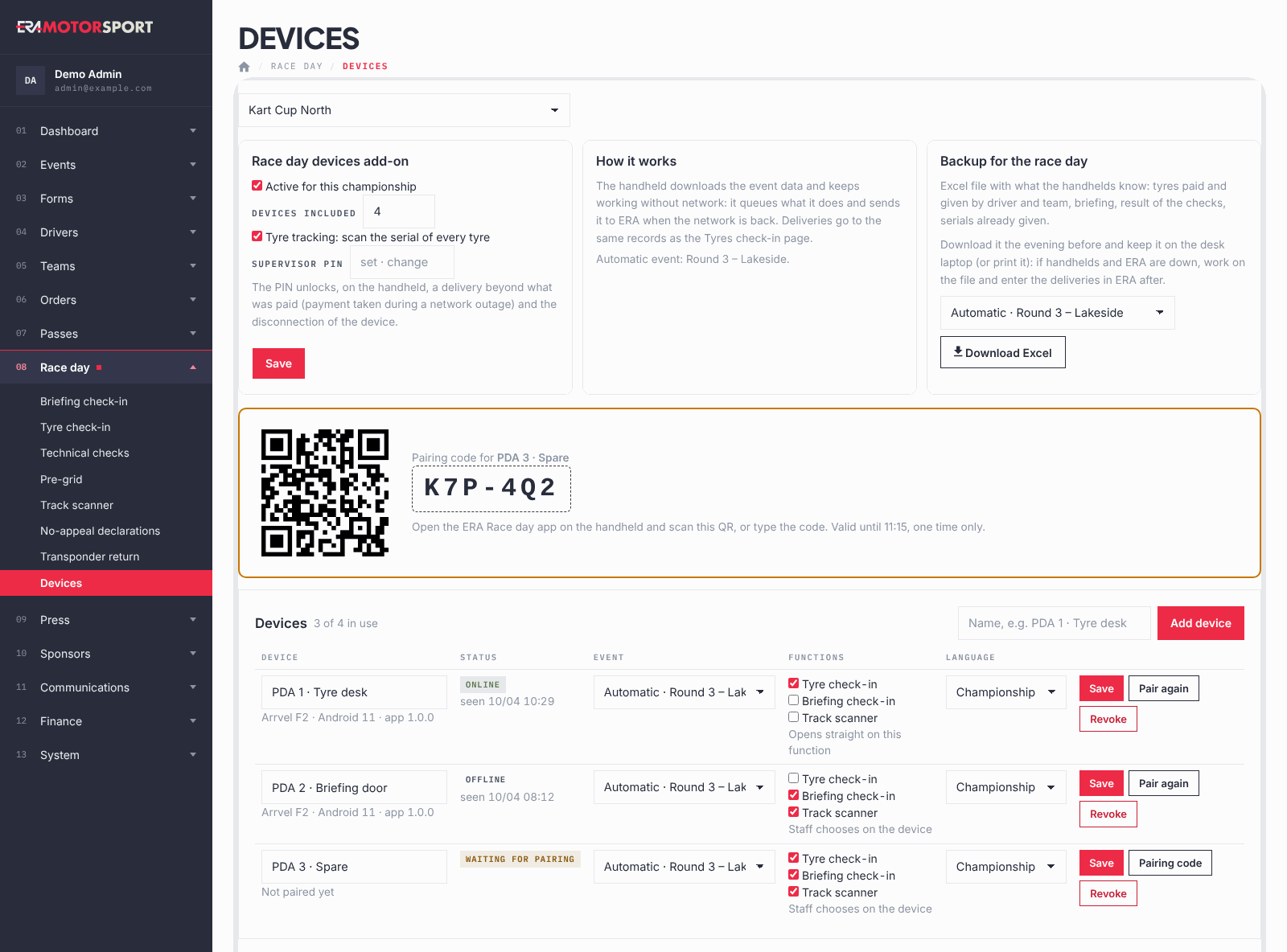
The list of handhelds
Each line shows the name, the model, the Android and app version, and the status:
- "waiting for pairing": added, not yet paired;
- "online": it connected to ERA in the last 5 minutes;
- "offline": no connection for more than 5 minutes. Under the status, "seen" gives the last time. An offline handheld keeps working and sends everything when the network is back.
Pair again gives a new code to pair the same line again, for example on a new handheld. Revoke removes the handheld: at its next connection it deletes the event data and goes back to the pairing screen. A revoked handheld frees a place in Devices included.
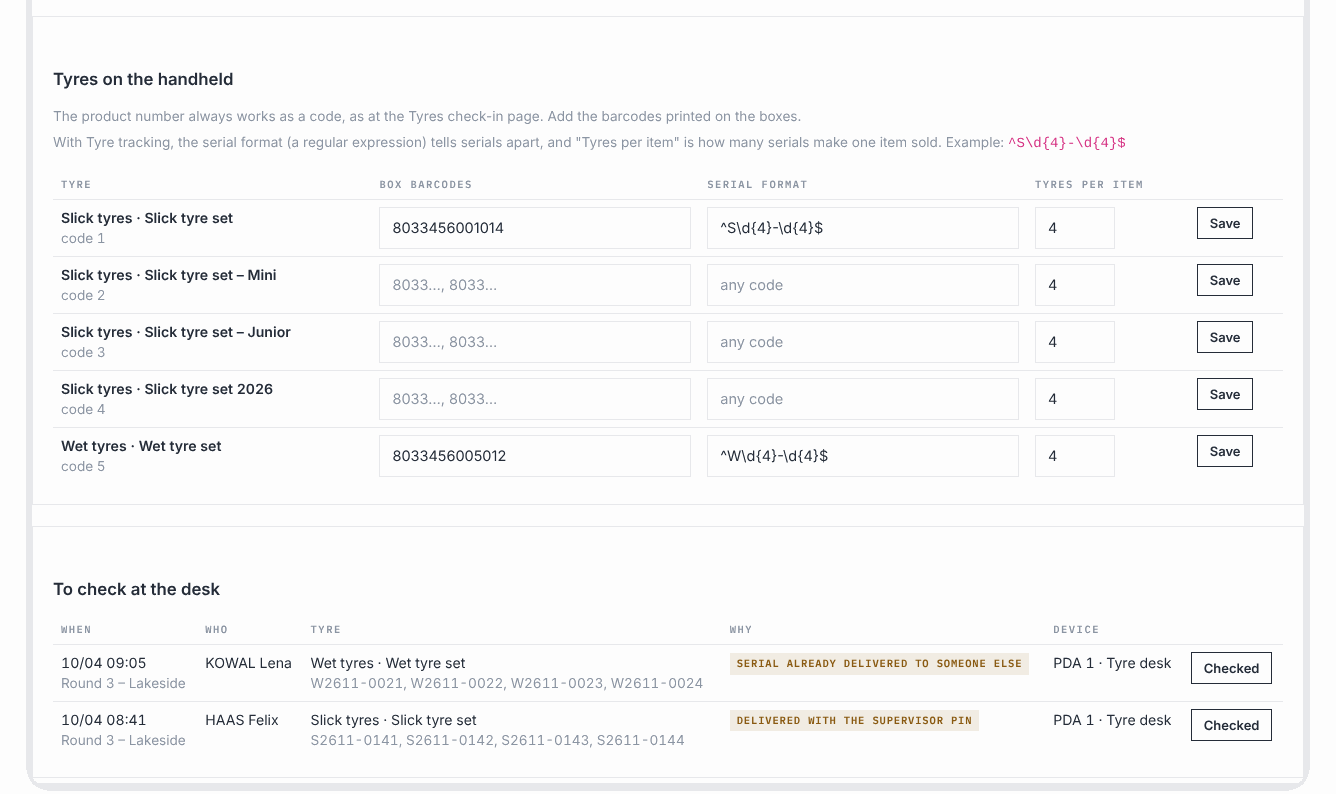
Tyres on the handheld
For each tyre product of the championship:
- the product number always works as a code, as at the Tyre check-in page;
- Box barcodes: the barcodes printed on the boxes, separated by commas. Scanning the box delivers one set;
- Serial format: only with Tyre tracking. It tells the serials of this tyre apart from the others, written as a pattern (for example
^S\d{4}-\d{4}$for serials like S2611-0141). Empty: any code is accepted as a serial; - Tyres per item: how many tyres make one item sold, and so how many serials the desk reads after the box (4 for a set).
Press Save on each line.
To check at the desk
At the track a tyre that left the desk has left. So ERA never refuses a delivery made on a handheld: it records it, and lists here the ones to check:
- "beyond what was paid": for example two handhelds without network gave the last set of the same driver;
- "delivered with the supervisor PIN": the payment was taken during a network outage. Check that it is now in ERA;
- "serial already delivered to someone else": the same serial was read for two deliveries.
Each line shows when, who, the tyre with its serials, why and which handheld. When you have checked it, press Checked and the line goes away.
Backup for the race day
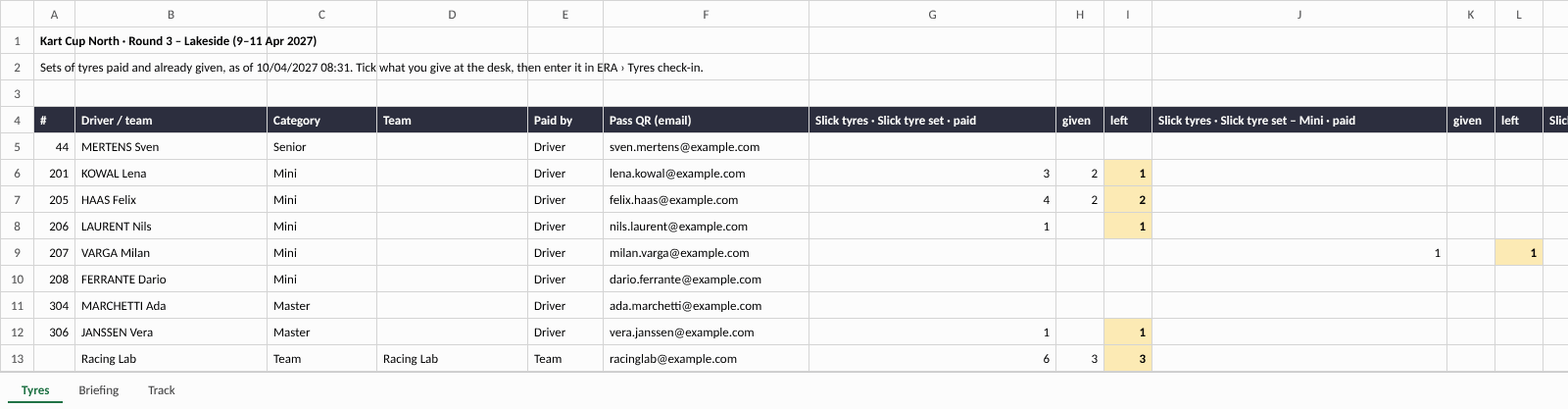
The plan B for when handhelds and ERA do not work. In Backup for the race day choose the event (Automatic or one event) and press Download Excel. The file has the same data as the handhelds:
- Tyres: for each driver and team, paid, given and left for each tyre product, with the columns "Given at the desk (tick)" and "Notes";
- Briefing: the entered drivers, the result of the checks, who is already in, and the column "In (tick)";
- Track: Accepted, Refused, To check, in colours;
- Serials: only with Tyre tracking, the serials already given.
Download it the evening before and keep it on the desk laptop, or print it. If you have to work on the file, enter the deliveries in ERA afterwards at Race day › Tyre check-in and Race day › Briefing check-in.
App updates
Only a superadmin sees the box App updates. It is for all championships: the handhelds get new versions of the ERA Race day app from ERA, not from the Play Store.
- Build the signed APK of the app and choose it with the file box.
- In "What changes (optional)" write a few words for the staff. Tick Required if the old versions must update before working.
- Press Upload APK.
ERA checks the file: it must be the app of ERA Race day, with a version number higher than the ones already uploaded, and signed with the Unlead key (on the test server also with the test key). Otherwise it refuses it with a message. Under the form, "Upload limit of this server" tells the largest file accepted: the APK is about 2 MB, so the server must accept at least 8M.
Each uploaded version is a line with Version, Uploaded (date and who), Handhelds on it and Status ("active" or "off", and "required"). The buttons:
- Turn off / Turn on: a version that is off is not offered to the handhelds;
- Make required / Not required: with "required", a handheld on an older version cannot work until it has updated;
- Delete: removes the version from ERA. The handhelds that already have it keep it.
In Devices a handheld that has not yet the latest version shows the tag "update pending" under its status. What happens on the handheld is in The ERA Race day app.
The signing key. Android installs an update only if it is signed with the same key as the app already on the handheld. The superadmin sees the key under the name of each handheld and under each version: "Unlead key" or "other key", with the first characters of its fingerprint. Two warnings help:
- the red tag "update blocked: different key" on a handheld: the new version has a different key and Android refuses it there. Upload a version signed with the same key, or uninstall the app from the handheld and install it again;
- the red tag "Can't install, other key" in Handhelds on it, with the number of handhelds that cannot install that version.
Apps built on a PC for tests, with the debug key, do not update with the APKs signed with the Unlead key: install the signed app once.
What ERA checks
- Only a superadmin switches the add-on on and changes the number of handhelds included.
- Add device works only with the add-on on and a free place among the handhelds included.
- The PIN is one per championship, 4 to 8 digits.
- A pairing code works once and for 10 minutes.
- A handheld works only with at least one function and an event: with Automatic, an event in progress or starting within 3 days.
- The serial format must be a valid pattern.
- Only a superadmin uploads, turns off, makes required or deletes an app version. ERA refuses an APK that is not the Race day app, is not newer than the uploaded ones, or is signed with another key.
Common problems
| What happens | What to do |
|---|---|
| The Race day devices add-on is not active for this championship. | Ask the ERA administrators to switch it on. |
| All the devices included are in use: revoke one or ask to include more. | Revoke a handheld you no longer use, or ask the ERA administrators for more. |
| The PIN must be 4 to 8 digits. | Write only digits, 4 to 8. |
| The serial format is not a valid regular expression. | Check the pattern, or leave it empty to accept any code. |
| The handheld says the code is wrong or expired. | Press Pairing code (or Pair again) for a new code and use it within 10 minutes. |
| The handheld stays "offline". | It keeps working. When it finds the network it sends everything. If it must send now, take it where there is Wi-Fi or mobile data. |
| Backup: no event in progress or within 3 days. Choose the event. | Choose the event in the list instead of Automatic. |
| The handheld shows "update pending" for a long time. | It updates at its next connection; a kiosk kit waits for 2 minutes without scans. If the red tag "update blocked: different key" is also there, see App updates. |
| "Can't install, other key" in the table of versions. | Those handhelds have the app signed with another key. Uninstall and install again with the signed APK, or upload a version with their key. |