
03 · Forms
The form editor Categories, fields and messages.
Who uses itOrganizer
The editor is where a registration form is finished: what it covers, which categories drivers can choose and at what price, which questions they answer, and the texts they read.
What it is for
Every form, whether created from a template or duplicated, opens here. Before you make a form public, check its event or rounds, its categories with prices, and its fields. Once drivers have registered, the editor protects their answers: you can still adjust the form, but not in ways that would lose data.
Before you start
- The categories of the championship (or of the event) must exist and be active in Categories.
- For a field of type Choice from a list (a list of Forms › Field lists), create the list first in Option lists.
Step by step
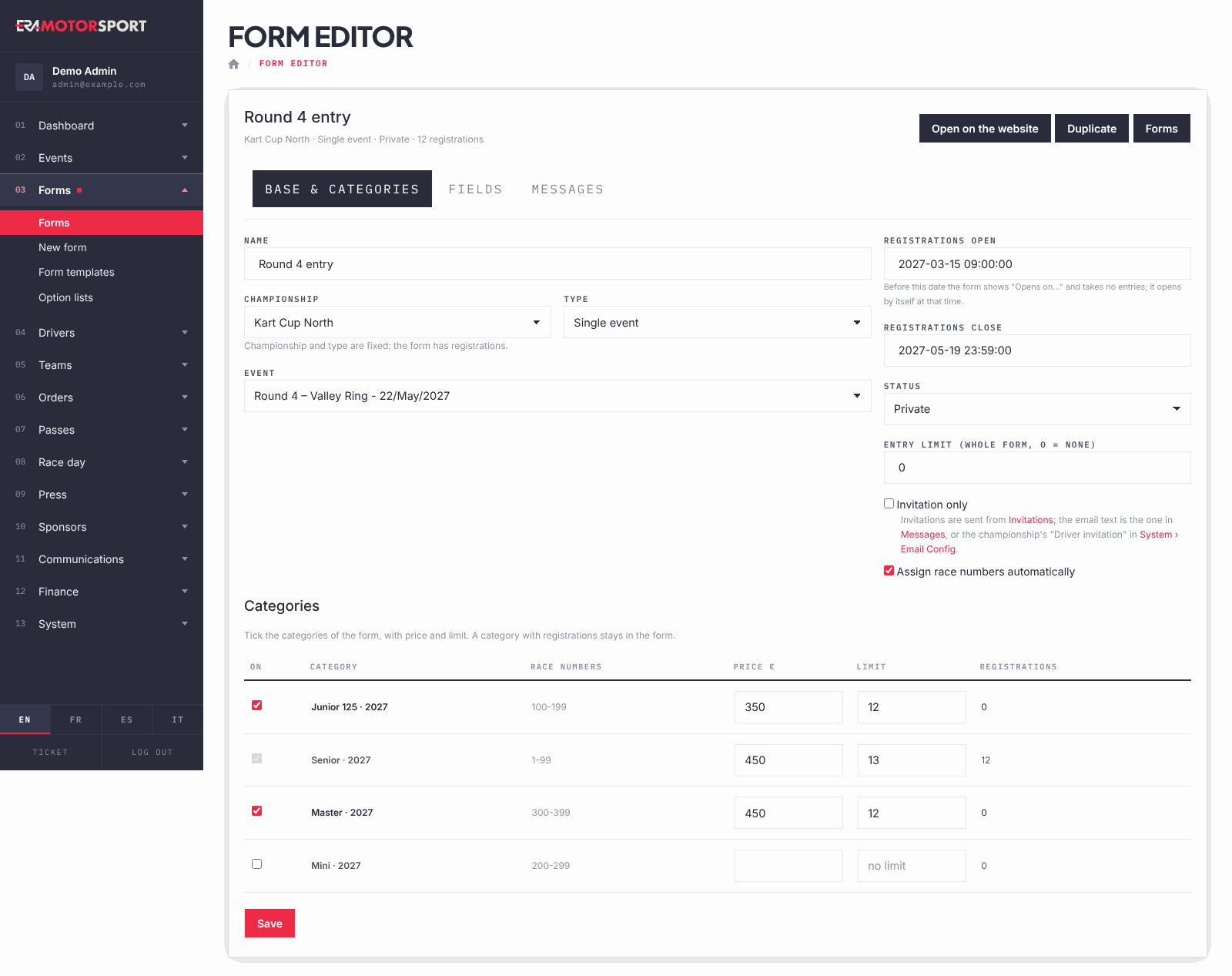
- Open the form. In Forms › Forms click the name of the form. The header shows championship, type, Private or Public, and the number of entries. Use Open on the website to see the form as drivers see it.
- Set the base data. In the tab Base & categories write the Name, choose the Event (single event) or tick the Rounds covered (season pass; none ticked = every race in the year of Registrations close, or every race when there is no closing date: see Selling a season pass), and pick the date and time of Registrations close from the calendar. Set an Entry limit (whole form, 0 = none), tick Invitation only if only invited drivers may register, and Assign race numbers automatically if ERA should give the numbers. To open the registrations later, pick Registrations open too: before that moment the website shows "Opens on…" with the button off and takes no entries, and the form opens by itself at that time. Empty means open now.
- Choose the categories. In the table tick On for each category of the form and write its Price € (0 if the entry is free) and, if needed, its Limit. Left empty, the limit is saved as 999 places: the dashboard and the driver desk count the places from 999. The column Race numbers shows the number range of the category, Registrations how many drivers already entered it. Click Save.
- Make it public. When everything is ready set Status to Public and click Save. A private form does not accept registrations on the website.
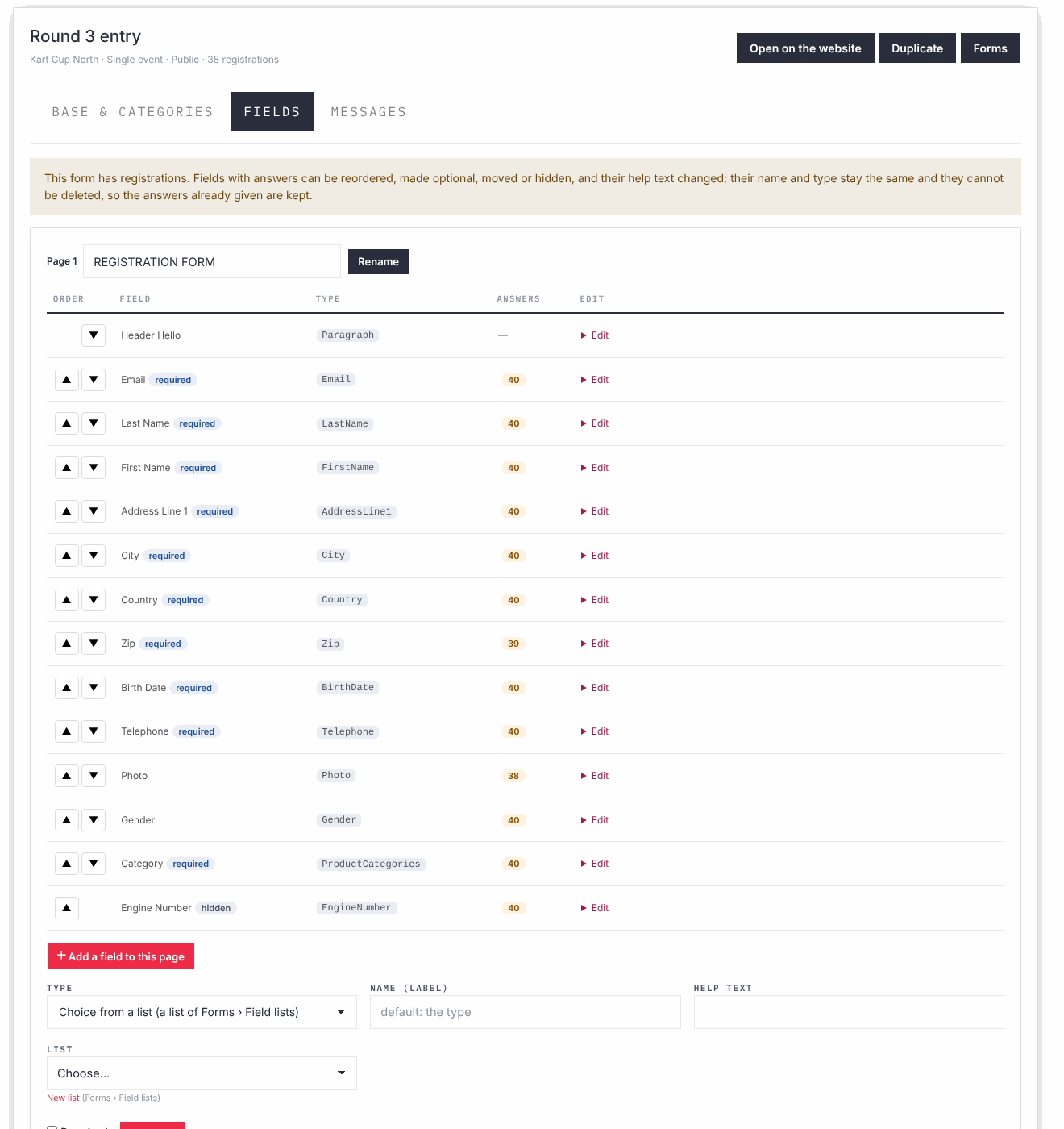
- Arrange the fields. In the tab Fields each page of the form is a box with its fields in order. Use ▲ and ▼ to move a field, Rename to rename a page, and Add page with a Name of a new page to add one. The column Answers shows how many drivers filled in each field.
- Edit a field. Click Edit on the row. Change the Name (label on the form) and the Help text, tick Required, Unique (with its Message when not unique), Driver can change it or Hidden, or move it to another Page. Click Save field.
- Add a field. Click Add a field to this page, choose the Type, write the Name (label) and the help text, tick Required if needed and click Add field. The field goes at the end of the page.
- Write the messages. In the tab Messages write the welcome message shown at the top of the form, one tab per language, and click Save messages. Below, under Invitation emails of this form, you can write the subject and message of the Driver invitation and the Team invitation for this form only, then click Save invitation emails. Left empty, ERA uses the championship's texts in Email settings. The placeholders you can use, such as {first_name} or {link}, are listed above the boxes.
Field types. Besides the driver's data (name, date of birth, address, licence, transponder, chassis, engine, team, entrant, guardian of a minor, invoice data, medical certificate and others), you can add:
- Text block (no answer): a paragraph of text, HTML allowed, for instructions or rules.
- Generic fields that you name yourself, as many as you need: Free text (your question in the name), Choice between options (options in the help text, comma separated), Yes / No (your question in the name), Date (your question in the name), File to upload (your document in the name) and Choice from a list (a list of Forms › Field lists).
- Signatures drawn on screen with a finger or the mouse: Signature of the driver (drawn on screen), Signature of the entrant (drawn on screen) and Signature of the guardian (drawn on screen, minors). They are printed on the entry sheet.
- Statement to tick (the label is the text, e.g. privacy): a consent box; the name of the field is the text the driver accepts.
- Federation equipment fields (helmet, suit, gloves, shoes, body protection, oil brand and model): drivers choose from the lists in Option lists.
What ERA checks
- Every ticked category needs a price: write 0 if it is free. A category that has entries stays in the form and cannot be unticked.
- Once the form has entries, Championship and Type are fixed. Without entries you can change them: save, and the events, rounds and categories reload.
- A field with answers keeps its name and its type and cannot be deleted. You can still move it, reorder it, make it optional, hide it and change its help text. For a Choice from a list (a list of Forms › Field lists) field, the list is also fixed once there are answers.
- Some fields are needed by the website and by ERA (email, first name, last name, category and a few others): their name is fixed and they cannot be hidden or deleted.
- A form has only one field of each type, except text blocks and generic fields. If ERA says the form already has one, it may be hidden: show it again.
- A generic field needs a name, because it is the question the driver reads. A choice between options needs the options in the help text, comma separated. A choice from a list needs its list.
- Ticket prices must match the ticket names in the help text, one price per ticket, separated by ; (for example 10 ; 12,50). A product has one price.
- The invitation subject is kept only if you also write the message.
- Registrations open must be before Registrations close.
Common problems
| What happens | What to do |
|---|---|
| "Not saved: write the price of every ticked category (0 if it is free)." | Fill in the price of each ticked category, then save again. |
| The name of a field cannot be changed. | The field has answers, or ERA needs it by name. Change the help text instead, or hide it and add a new field. |
| Delete field is missing. | The field has answers or is required by ERA. Tick Hidden instead: the answers already given are kept. |
| "The form already has a field of this type (it may be hidden)…" | Find the hidden field (grey row, tag "hidden"), untick Hidden and save. |
| The Messages tab says the form has no welcome message field. | The form has no welcome text block. Ask a superadmin to check the template it came from. |
| A category is missing from the table. | Only active categories of the championship or of the event are listed. Check it in Categories. |
| Not saved: the opening date must be before the closing date. | Move Registrations open before Registrations close, or empty it to open now. |
| The opening date is not valid: choose it from the calendar. | Pick the date and time from the calendar instead of typing them. |
| Drivers say the form shows "Opens on…". | Registrations open is in the future. Empty it and save to open the registrations now. |
See also
Something does not match what you see in ERA? Write to us from the contact page.