
13 · System
Admin levels Roles and their menu.
In ERASystem › Admin levels
Who uses itSuperadmin
The levels of the ERA users, with the menu that goes with each one. Only a superadmin can open this page.
What it is for
A level is a role, for example "Organizer" or "Track staff". Instead of choosing the menu of every user one by one, you choose it once for the level: every user of that level sees the same menu. The superadmin level is fixed and sees everything.
Step by step
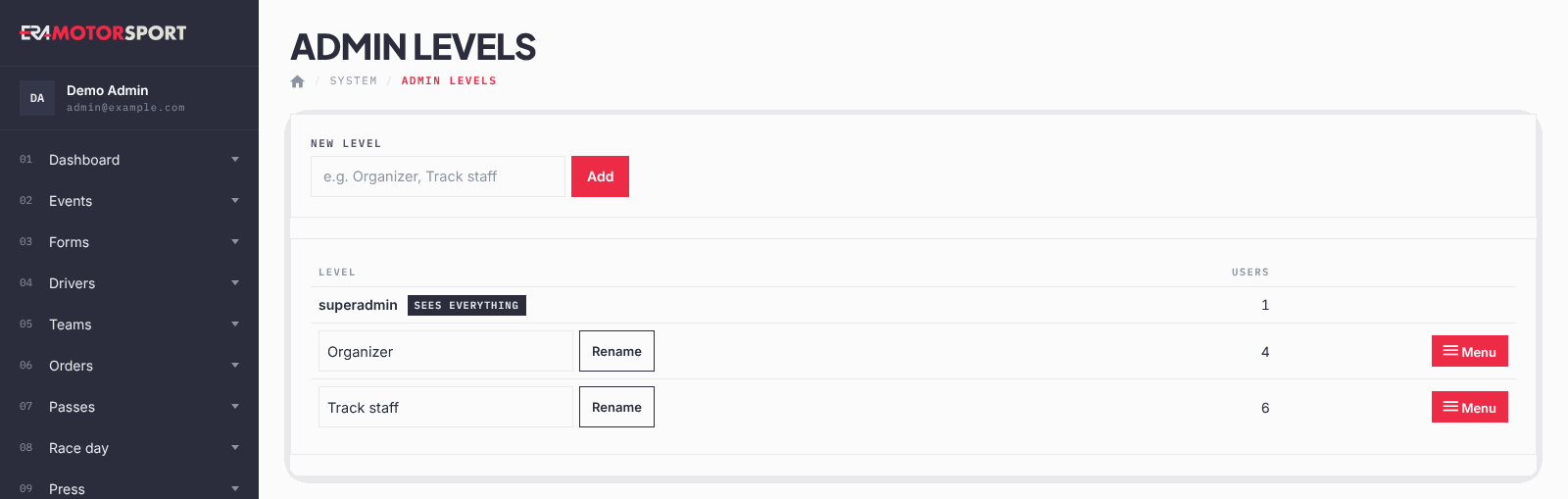
- Open the page. Go to System › Admin levels. The table shows each Level and how many Users have it.
- Add a level. Write the name in New level and click Add. ERA opens the menu of the new level straight away.
- Choose the menu. Tick the items, grouped by section, that users of this level see. Click Save the menu of the level.
- Change the menu later. In the list click Menu on the row of the level. Use ‹ All levels to go back.
- Rename a level. Change the name in the row and click Rename.
- Delete a level. The delete button appears only when no user has the level. Confirm to delete it.
Users of the level who have a personal menu (set in Administrators with Menu) keep theirs when you change the level menu.
What ERA checks
- Two levels cannot have the same name.
- The superadmin level cannot be renamed, deleted or given a menu: it sees everything.
- A level used by at least one user cannot be deleted: give those users another level first.
Common problems
| What happens | What to do |
|---|---|
| A user of the level does not see the new menu item. | Ask the user to sign in again. If it still does not appear, the user has a personal menu: reset it in Administrators. |
| The user sees the item but gets "Not allowed". | The menu decides only what is visible. Tick the right championship for the user in Administrators. |
| There is no delete button. | Some users still have the level. |
See also
Something does not match what you see in ERA? Write to us from the contact page.