
Payment methods How drivers and teams pay.
The payment methods of a championship: what the website offers for each kind of payment, what the ERA counter accepts at the track, and the keys of the payment gateways.
What it is for
Each championship collects money with its own accounts. Here you decide which methods drivers and teams see when they pay an entry, a photo pack, tyres or a purchase during the event, and you enter the keys that connect the website to the gateways: Monetico, Stripe, Saferpay and PayPal, plus the bank details for transfers.
Before you start
You need the keys from the back office of your gateway (the merchant account of the championship). You see the page if your level or your own menu includes it, and you work only on your championships.
Step by step
- Choose the championship. Go to System › Payment methods and choose the championship at the top.
- Tick the website methods. Each column is one use: Entries, Photo packs, Tyres and Shop on track (website, during the event). Tick the methods offered for each, for example Stripe (card), Bank transfer or Pay at the track. The shop on track offers only immediate payments, plus Bank transfer after the race (teams only).
- Write the photo text. Under Photo packs, Photo packs: text for the drivers is the text drivers read when they buy photos.
- Tick the counter methods. In ERA counter on track tick the methods the counter at the track accepts. If none is ticked, the counter offers all of them.
- Enter the gateway keys. In Gateway keys fill in the fields of the gateways you use: Monetico, Stripe, Saferpay, PayPal and Bank transfer (Account holder, IBAN, BIC / SWIFT, Bank). The note at the bottom of the box gives the return address to set in the Monetico and Stripe back offices.
- Set a mark-up (optional). In Mark-up on online payments write a percentage for Monetico, Stripe, Saferpay or PayPal, for example 4 to pass the card charges on to whoever pays. Decimals are fine (2.5 or 2,5). Empty means no mark-up.
- Save. Click Save the payment methods. ERA tells you how many changes it saved.
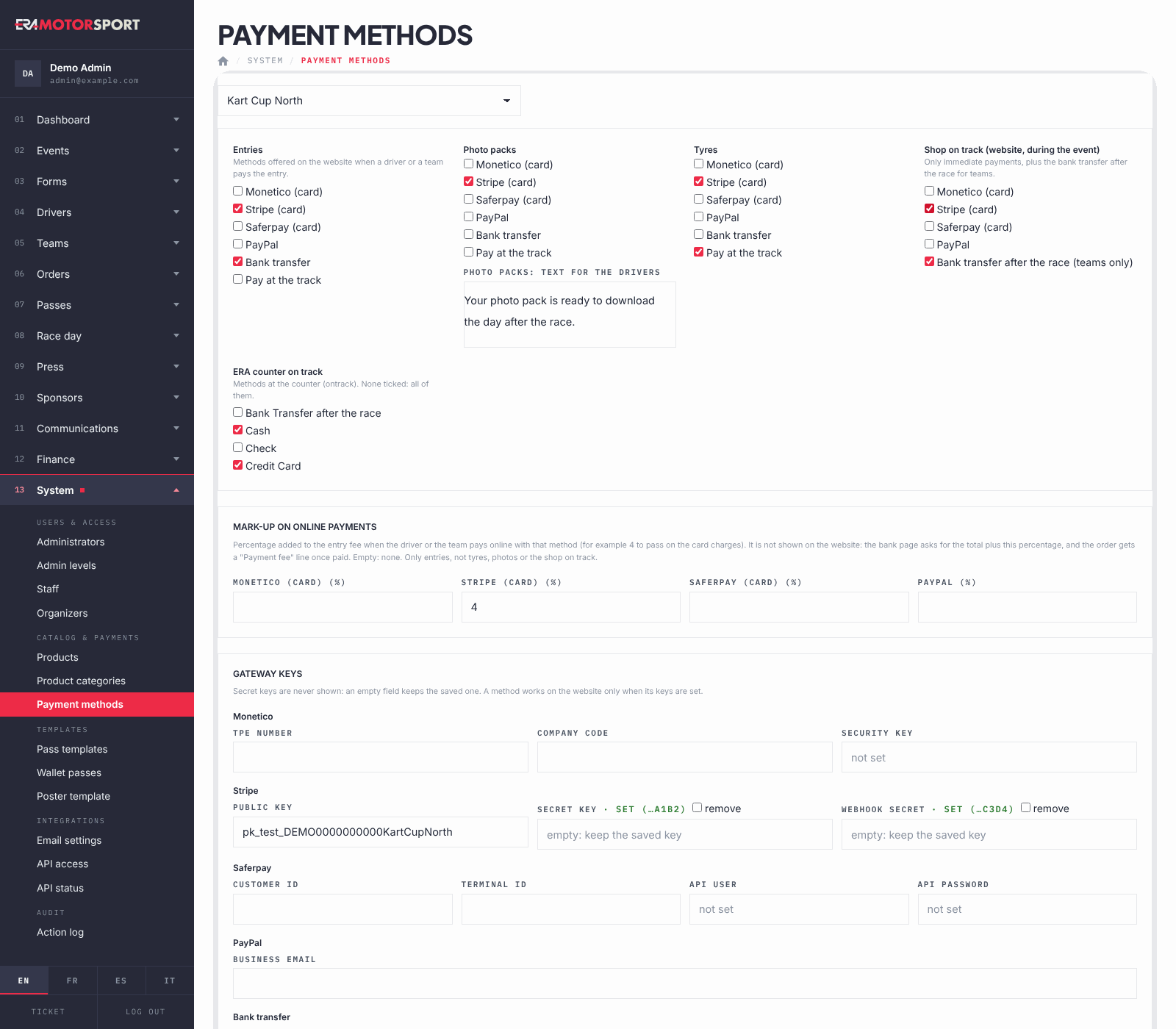
Secret keys (the Stripe Secret key and Webhook secret, the Monetico Security key, the Saferpay API user and API password) are never shown again after you save them. Next to the label ERA shows only that the key is set, with its last 4 characters, for example "set (…a1b2)".
- To keep the saved key, leave the field empty.
- To change it, type the new key and save.
- To delete it, tick remove next to the label and save.
The other fields (public key, TPE number, business email, IBAN…) show their value. Empty one of them and save to remove it.
The mark-up on online payments
- It applies only to entries, of drivers and of teams, paid online with that method. Tyres, photo packs and the shop on track never have a mark-up, and neither have bank transfer and payment at the track.
- The website does not show it, neither in the entry form nor on the payment buttons: the bank page asks for the total plus the percentage.
- Once the payment arrives, the order gets a "Payment fee" line (for example "Payment fee (4%)") and its total becomes the amount paid. The payment in ERA has the same amount, so orders, payments and invoices match.
- An entry ordered by bank transfer and then paid by card on the website pays the mark-up of the card.
What ERA checks
- You can change only the championships you manage.
- A method works on the website only when its keys are set: tick it only after entering them.
- Every save is recorded in the Action log with the names of the changed keys, never their values.
- The mark-up goes from 0 to 20 per method and per championship: a higher number is saved as 20, zero or an empty field means none. Its changes are in the Action log too.
Common problems
| What happens | What to do |
|---|---|
| A method is ticked but drivers do not see it, or the payment fails. | Check the keys of that gateway in Gateway keys and the return address in the gateway back office. |
| You do not remember which key is saved. | Compare the last 4 characters shown next to the label with the key in the gateway back office. |
| You saved and the secret key is still the old one. | An empty field keeps the saved key. Type the new key and save again. |
| The counter offers methods you did not want. | Tick at least one method in ERA counter on track: with none ticked, all are offered. |
| A driver says the bank page asked for more than the entry fee. | It is the mark-up set for that method. Once paid, the order shows it as a "Payment fee" line. |
| You no longer want a mark-up on a method. | Empty its field in Mark-up on online payments and save. |