
13 · System
Pass templates The look of the passes.
In ERASystem › Pass templates
Who uses itSuperadmin · Organizer
The backgrounds of the passes of a championship: front and back of each printed pass and the strip at the top of the Apple and Google Wallet pass.
What it is for
The printed passes use these images as background, front and back. Each championship has its own graphics. Upload them before the first event of the season.
Before you start
Prepare the images in JPG or PNG. The Wallet strip is 1125 × 294 px. You see the page if your level or your own menu includes it, and you work only on your championships.
Step by step
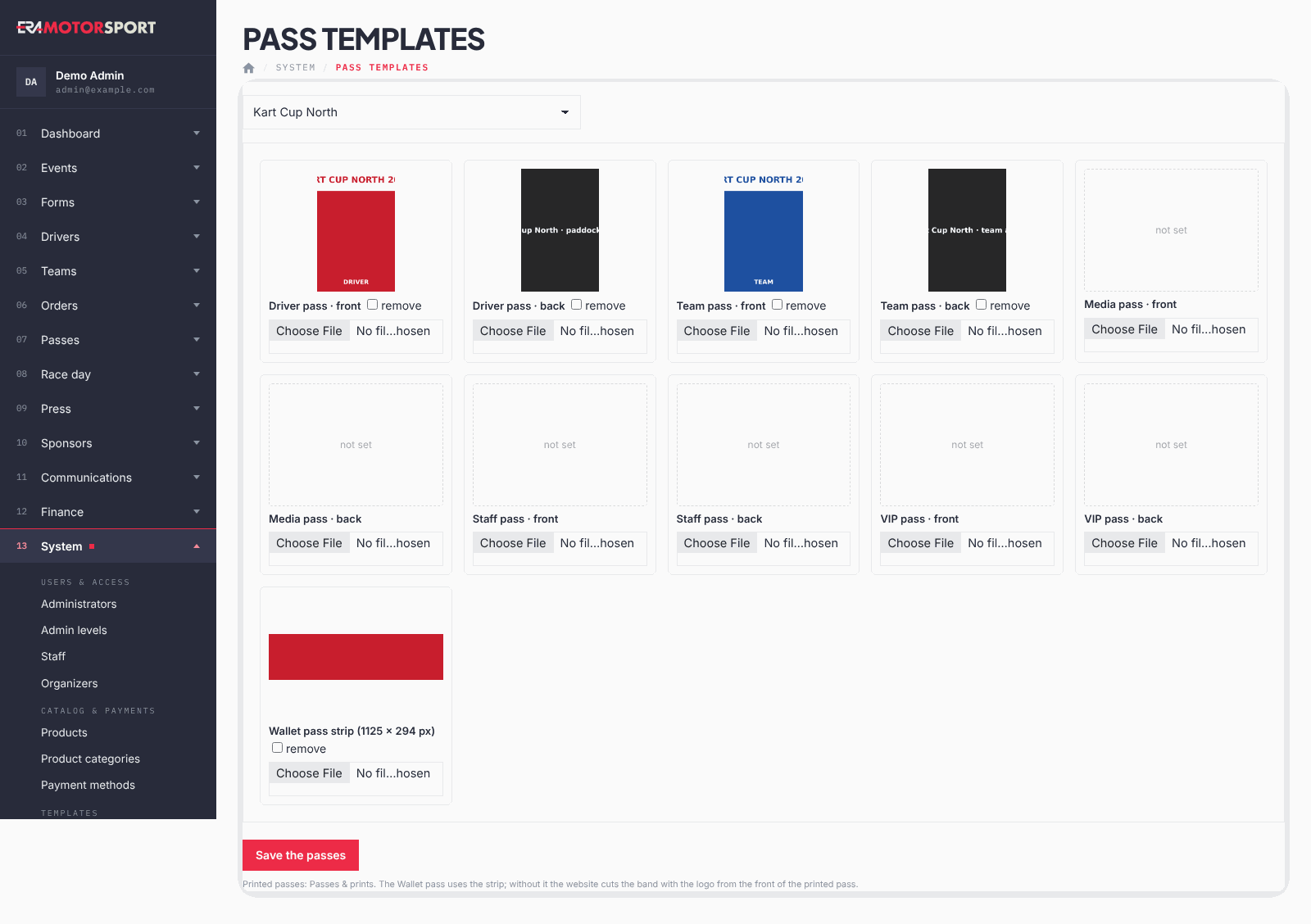
- Choose the championship. Go to System › Pass templates and choose the championship at the top. Each box shows an image or not set.
- Upload the images. In the box of each pass choose the file. There is a front and a back for the driver, team, media, staff and VIP pass, from Driver pass · front to VIP pass · back.
- Upload the Wallet strip. In Wallet pass strip (1125 × 294 px) choose the strip shown on the phone pass. Without it, the website cuts the band with the logo from the front of the printed pass.
- Remove an image. Tick remove under the image.
- Save. Click Save the passes. Click an image to see it at full size.
What ERA checks
- Only JPG or PNG images are accepted. ERA lists the files it refused.
- ERA reduces a large image by itself when you upload it (long side 2400 px).
- A new image replaces the old one of the same box.
- Wallet passes already saved on the phones update by themselves within 15 minutes.
- Every save is recorded in the Action log.
Common problems
| What happens | What to do |
|---|---|
| "Only JPG or PNG images". | Export the image again as JPG or PNG. |
| The Wallet pass still shows the old strip. | Wait up to 15 minutes. |
See also
Something does not match what you see in ERA? Write to us from the contact page.