
13 · System
Wallet passes Switch a pass off and on.
In ERASystem › Wallet passes
Who uses itSuperadmin
The passes that drivers, teams and media keep in Apple Wallet or Google Wallet. Here you deactivate a pass, for example after a disqualification or a lost phone, and make it valid again. Only a superadmin can open this page.
What it is for
A pass saved on a phone cannot be taken back. You can mark it as not valid: the pass on the phone shows it, and the desks at the track see a red warning when they scan it.
Step by step
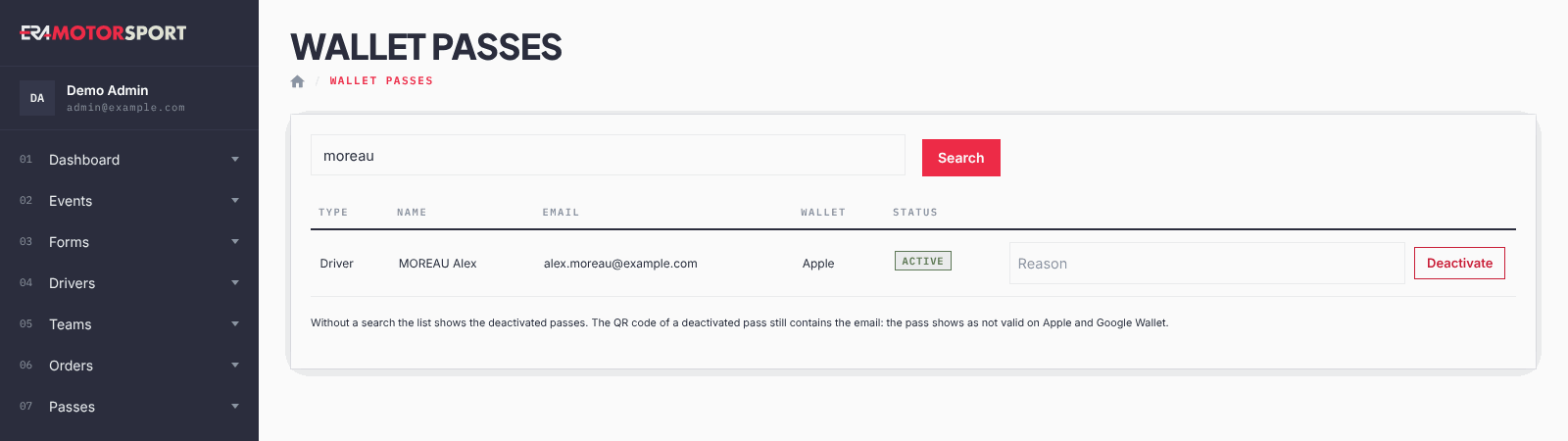
- Open the page. Go to System › Wallet passes. Without a search, the list shows the passes that are deactivated now.
- Search. Type at least 3 letters of the email or name of a driver, team or media member and click Search.
- Read the row. Type is Driver, Team or Media. Wallet tells you where the pass is saved: Apple, Google, created, not saved or no pass yet. Status is Active or Deactivated.
- Deactivate. Write the Reason and click Deactivate. ERA adds your name to the reason.
- Reactivate. On a deactivated pass click Reactivate.
What ERA checks
- The change reaches the pass on the phone within about 15 minutes.
- A deactivated pass still opens on the phone and its QR code still contains the email, but Apple and Google Wallet show it as not valid.
- When the QR code of a deactivated pass is scanned at the driver desk, at the tyre desk or by the track scanner, ERA shows a red box with the reason.
Common problems
| What happens | What to do |
|---|---|
| The search finds nothing. | Type at least 3 letters. For a person, write the last name first ("Moreau Alex") or only the last name. Search by email if the name is spelled differently. |
| The phone still shows the pass as valid. | Wait about 15 minutes; the phone must be online. |
| The row says no pass yet. | The person never created a Wallet pass: there is nothing to deactivate on the phone. |
See also
Something does not match what you see in ERA? Write to us from the contact page.